
Azure CLI Brings Local Management and Runtime to Logic Apps Standard
🚀 Key Takeaways
- Terminal-First Authoring: The Azure CLI extension allows engineers to scaffold, configure, and inspect Logic Apps Standard projects directly from the console without relying on Visual Studio Code.
- Automated Dependency Isolation: Local runtime components and emulators install into isolated directories backed by cryptographic integrity manifests to protect host environments from corruption.
- Offline Validation and Hosting: Developers can spin up local runtime processes on demand and perform static workflow schema verification without an active cloud or host connection.
- Hybrid Connection Discovery: Built-in connectors and cloud-hosted API connections can be queried and bound to local environments while respecting Azure security boundaries.
- Actionable Diagnostics and Testing: Granular commands enable developers to monitor run states, replay triggers, download action payloads, and scaffold native test suites directly from scripts.
- Deterministic AI Integration: Structured terminal commands and dedicated Copilot skills give autonomous agents an authoritative feedback loop rather than forcing them to guess workflow configurations.
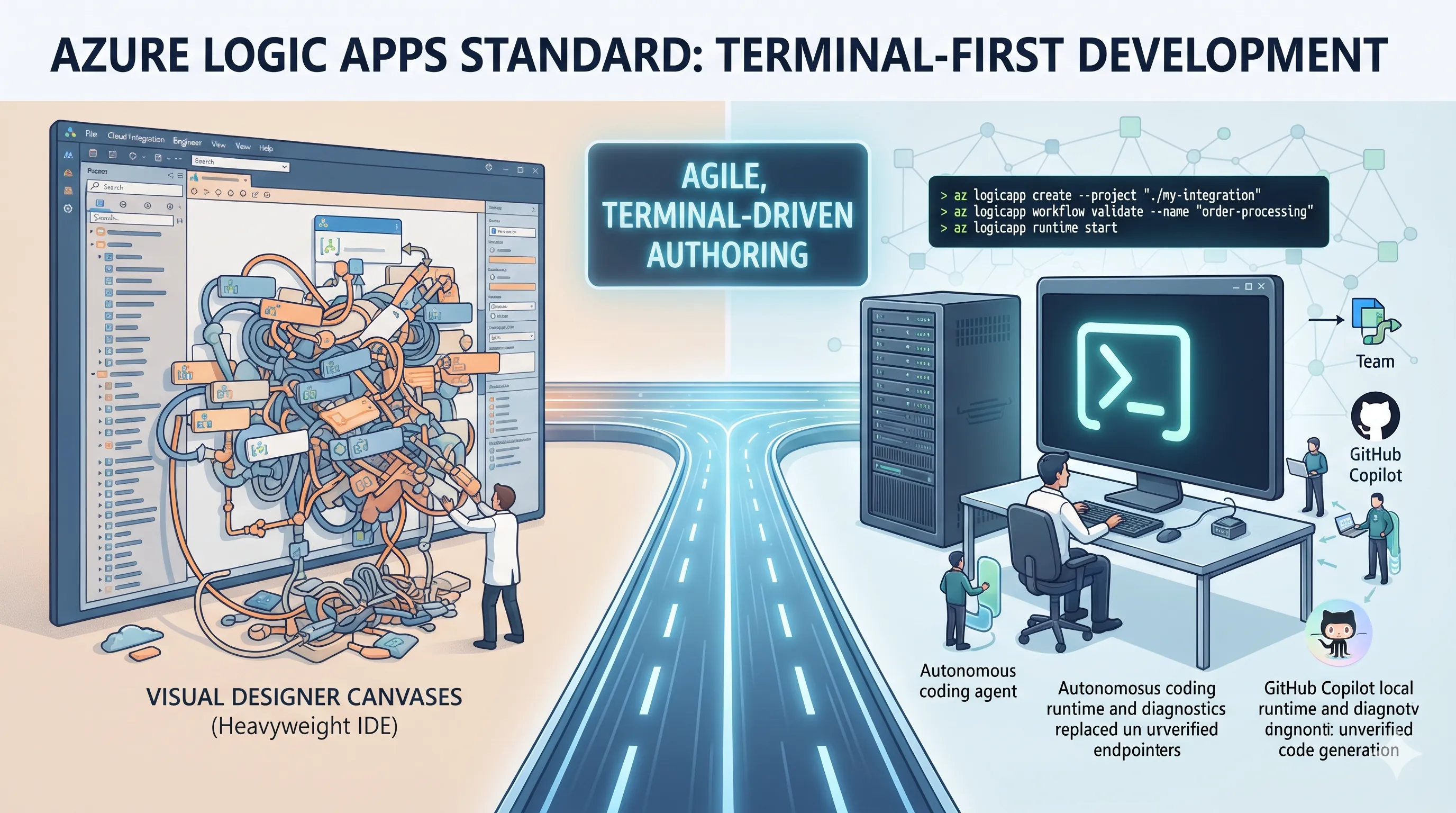
For cloud integration engineers and platform architects, developing Azure Logic Apps Standard workflows has long remained tightly coupled to visual designer canvases and heavyweight IDE extensions. While graphical modeling simplifies integration mapping, modern development environments, containerized devcontainers, and automated deployment pipelines increasingly demand an agile, terminal-driven authoring experience.
The release of the dedicated local CLI extension for Azure Logic Apps directly addresses this operational bottleneck. By bringing core project lifecycle tasks—such as runtime orchestration, workflow validation, and trigger diagnostics—into a unified command-line tool, teams can now build and debug mission-critical integration apps on headless systems and consistent developer workstations.
Crucially, this command-line interface provides the authoritative foundation required for deterministic, AI-assisted cloud engineering. Autonomous coding agents and GitHub Copilot can now interact with standardized local runtimes and diagnostic endpoints, replacing unverified code generation with verifiable, closed-loop integration workflows.
1. CLI Release Architecture and Installation Prerequisites
This section establishes the operational foundation for the local CLI for Logic Apps Standard workflow management, defining the exact runtime tiers, package dependencies, and architectural bounds required to run Standard workflows headlessly outside Visual Studio Code.Core Version Prerequisites and Extension Architecture
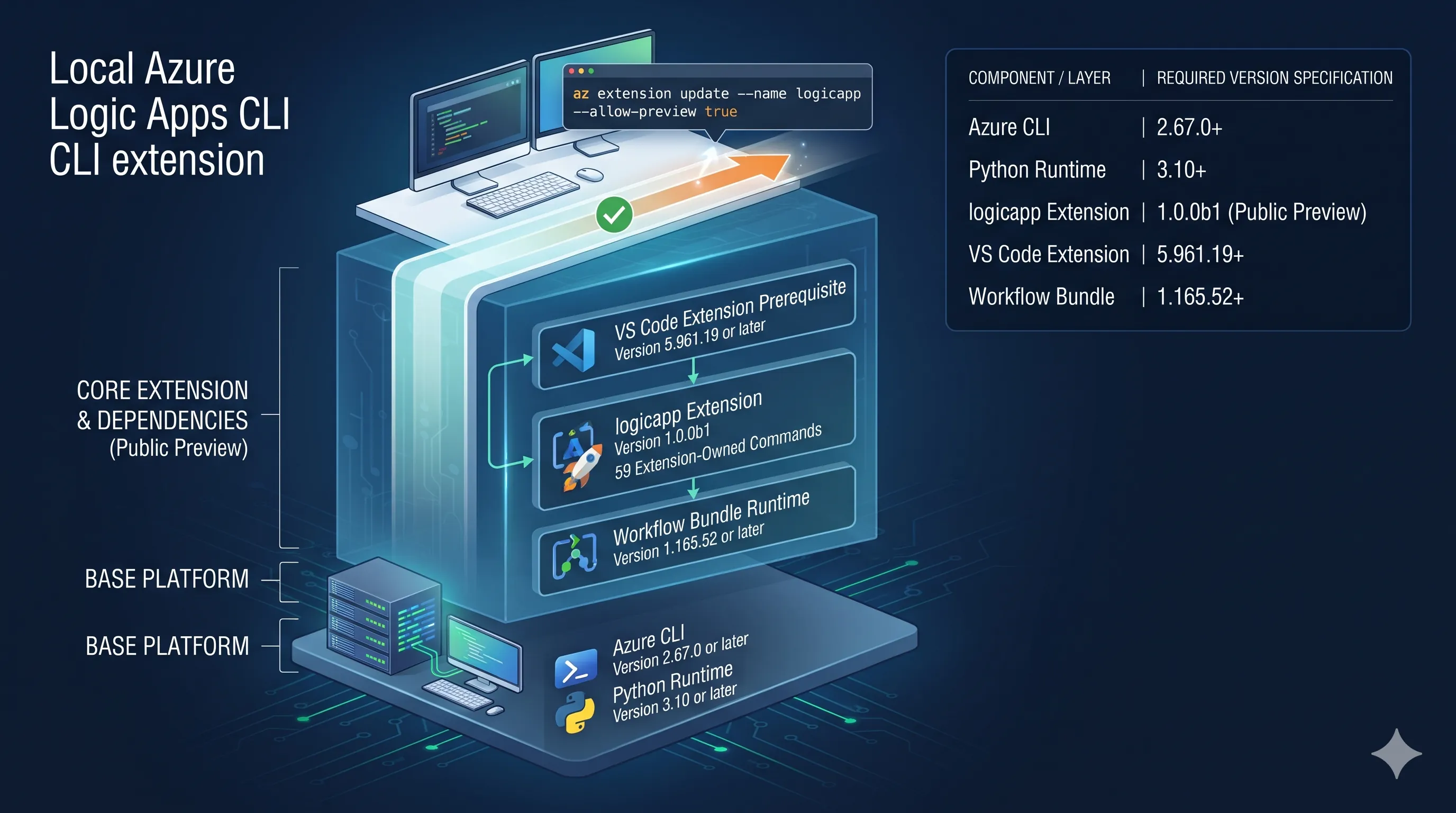
The terminal-based toolchain arrives via the public preview logicapp extension version 1.0.0b1 for Azure CLI.Rather than overhauling the established control plane, this release coexists alongside existing tooling.
It complements the visual designer and leaves existing resource-management and cloud-management commands intact rather than replacing them.
Architecturally, the package introduces 19 command groups containing 64 commands, operating directly beside 13 existing cloud-management commands.
Of these 64 commands, 59 are extension-owned commands dedicated to headless workflows.
Engineers gain local project creation, workflow authoring, local runtime management, connector discovery, run inspection, and test scaffolding without Visual Studio Code.
Running this management footprint requires strict adherence to baseline environmental versions across the host machine.
The extension demands Azure CLI version 2.67.0 or later, coupled with Python 3.10 or later for the underlying interpreter hosting the Azure CLI environment.
Furthermore, running advanced capabilities such as the documented local identity feature requires the Azure Logic Apps (Standard) VS Code extension version 5.961.19 or later alongside workflow bundle 1.165.52 or later.
Local runtime dependencies remain separate from the extension installation itself, requiring deliberate environmental alignment across each dependency tier.
| Component / Layer | Required Version Specification | Role and Support Boundary |
|---|---|---|
| Azure CLI | Version 2.67.0 or later | Base host platform supporting extension execution and backward-compatible cloud-management commands. |
| Python Runtime | Python 3.10 or later | Interpreter hosting Azure CLI processes and managing local extension operations. |
| logicapp Extension | Version 1.0.0b1 (Public Preview) | Delivers 19 command groups with 64 commands (59 extension-owned) for local authoring and management. |
| VS Code Extension | Version 5.961.19 or later | Prerequisite supporting boundary for documented local identity functionality. |
| Workflow Bundle | Version 1.165.52 or later | Underlying execution bundle runtime required for local identity and headless execution. |
Extension Lifecycle, Version Drift, and Update Workflows
Onboarding into the workflow is streamlined by design: the extension installs automatically upon executing anaz logicapp developer command or an az logicapp dependency command.However, day-two maintenance introduces operational nuances.
Azure CLI extensions do not update automatically when Azure CLI updates.
Because extension releases are decoupled from host CLI updates, environments risk silent version drift across operational environments.
Christos Panagiotidis noted that CLI extensions do not update with the CLI, so comparing results across runs requires recording CLI, extension, runtime, and project versions.
To ensure local environments adopt fixes, enhancements, and updated preview features, operators must update the logicapp extension to newer preview releases deliberately.
This update workflow is executed via the terminal:
az extension update --name logicapp --allow-preview trueSupplying the
--allow-preview true flag is essential because preview packages like version 1.0.0b1 would otherwise be blocked by Azure CLI's default stable-only extension policy.Regularly running this verification step ensures consistent workflow execution across headless CI/CD runners and local developer workstations.
2. Isolated Local Dependency Management and Integrity Verification
In the context of the Local CLI for Logic Apps Standard Workflow Management, managing prerequisite runtimes reliably without corrupting developer workstations or CI environments is essential.The CLI isolates required binaries, coordinates cryptographic verification, and protects existing system tooling by decoupling execution environments from global configurations.
Sandboxed Directory Layout and Cryptographic Integrity Checks
The Azure Logic Apps local tooling installs dependencies by default into~/.azurelogicapps/dependencies or the alternative directory path defined in the LA_DEPENDENCIES_PATH environment variable.This shared location downloads and hosts Azure Functions Core Tools, Node.js, Azurite, and the Logic Apps extension bundle, maintaining compatibility across terminal workflows and the VS Code extension.
Azurite itself is installed directly from
registry.npmjs.org using the managed Node.js npm instance rather than an unmanaged host package manager.Crucially, tool folders managed by this process are injected strictly into child-process environments—such as npm, Azurite, and the local workflow runtime—leaving the global machine
PATH unmodified.| Component / Tool | Installation Source / Mechanism | Integrity Verification |
|---|---|---|
| Node.js | Managed dependency directory download | Verified against published SHA256 checksums via SHASUMS256.txt |
| Azure Functions Core Tools | Managed dependency directory download | Verified against published SHA256 checksums via .sha2 sidecars |
| Azurite | Installed from registry.npmjs.org |
Managed via dedicated Node.js npm instance |
| Logic Apps Extension Bundle | Managed dependency directory download | Tracked in .logicapps-integrity.json manifest |
| .NET SDK | Omitted from automated installation | Refused with guidance due to vendor remote install script requirements |
SHASUMS256.txt and Azure Functions Core Tools against corresponding .sha2 sidecar files.However, checksums are not verified when downloading from custom source URLs.
All successfully installed files are indexed within a
.logicapps-integrity.json tracking manifest.When executing a dependency uninstall, the CLI references this manifest to delete only recorded files, leaving unmanaged files and external additions completely untouched.
Automated dependency installation deliberately excludes the .NET SDK because its official vendor installation path requires running a remote script; any automated attempt to install dotnet via the CLI is refused with guidance.
To install only missing supported tools without pulling down unnecessary binaries, developers can execute a targeted dependency install:
az logicapp dependency install --kind <kind>Read-Only Verification via Runtime Doctor and Exit Codes
Validation of the local development workstation is performed through the read-only inspection utilityruntime doctor.As documented in the InfoQ report, the command "never installs, downloads, starts, stops, repairs, decrypts settings, changes context, or contacts cloud storage."
The diagnostic routine limits its inspection to project files, local tool versions, cached bundle evidence, and available loopback network ports without altering local system state or interacting with remote cloud services.
To facilitate deterministic automation inside pipelines and validation scripts,
runtime doctor relies on strict process exit codes: it exits with code 1 when a required check encounters a failure, and exits with code 2 when a required check outcome is unknown.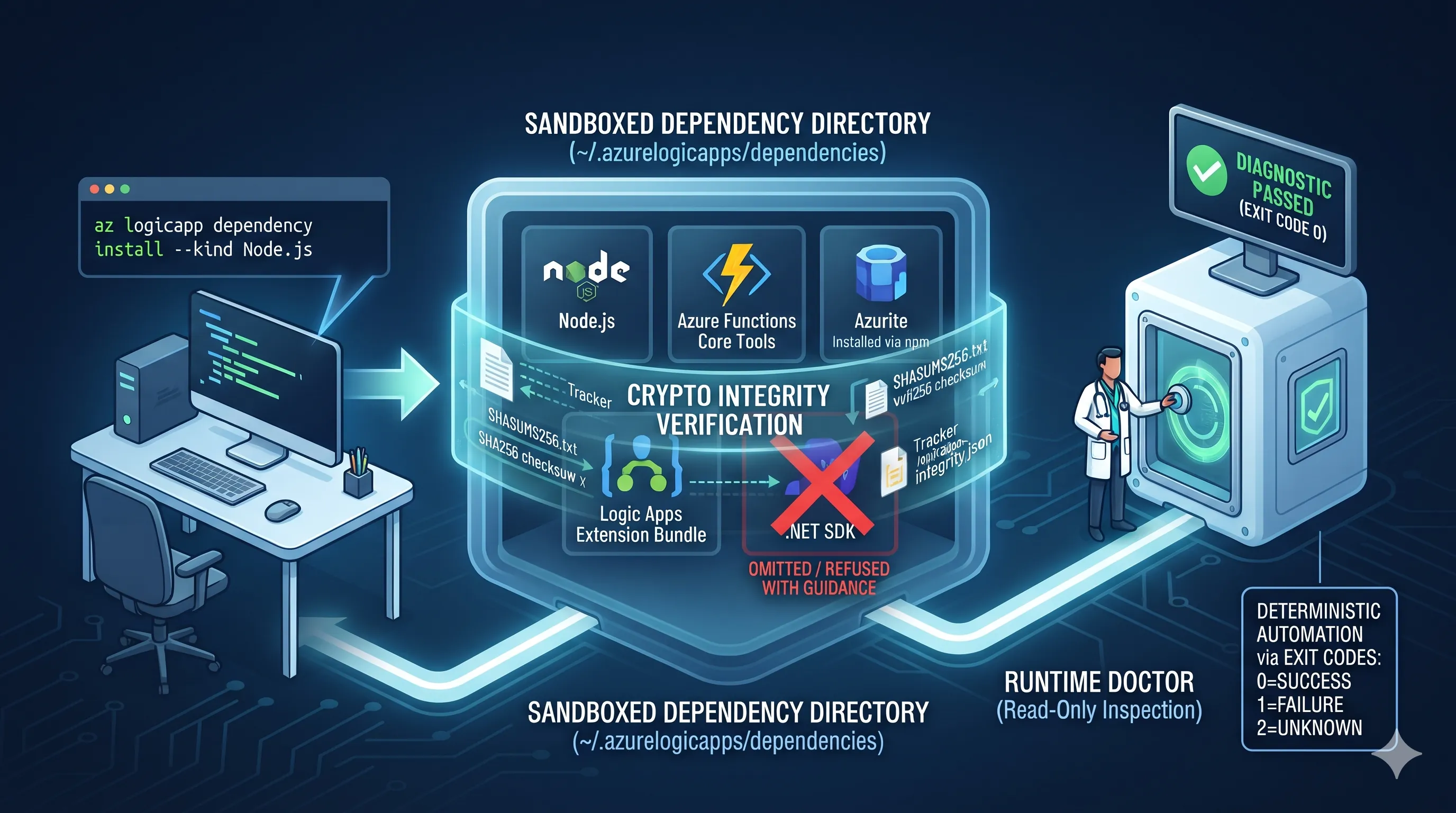
3. Local Project Authoring, Runtime Hosting, and Deterministic Packaging
Within the ecosystem of the Local CLI for Logic Apps Standard Workflow Management, local project authoring, runtime execution, and artifact compilation serve as the foundational execution loop.This operational phase allows developers to scaffold, inspect, execute, and package Logic Apps Standard workflows entirely on local workstations before committing code to deployment pipelines.
Offline Workflow Authoring and Context-Aware Validation
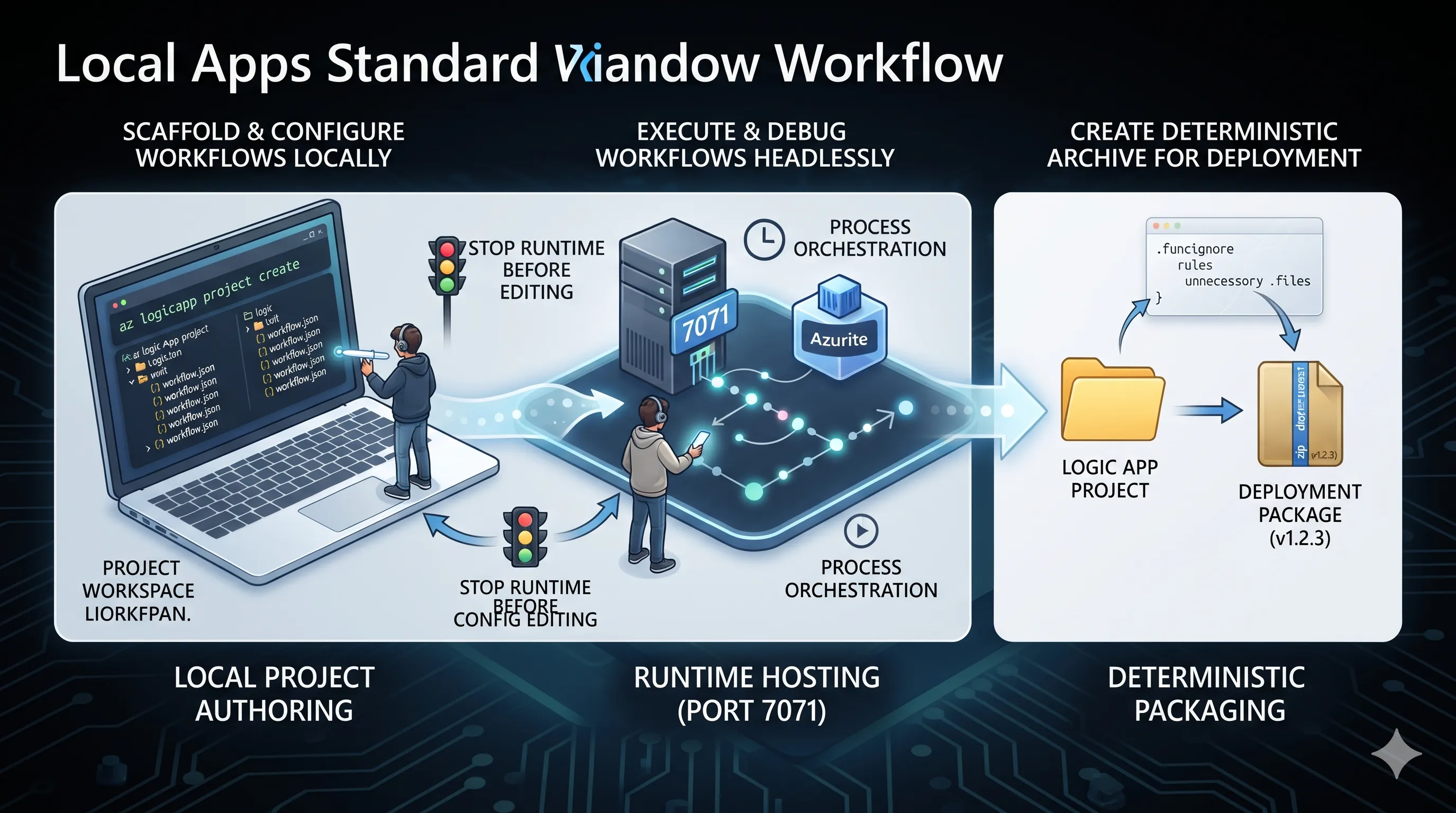
Local workflow construction begins with the project structure itself.The project create command initializes a new workspace or adopts an existing local Logic Apps Standard project directory.
Once a project is established, granular workflow manipulation is handled through the dedicated workflow management commands.
Developers use workflow create, workflow set, workflow export, and workflow validate to directly inspect and modify individual workflow.json files.
A critical limitation in this authoring model is that the CLI edits workflow.json directly and cannot modify the state of an actively running local app.
To streamline repeated interactions across multiple files, named context shortcuts store target coordinates so subsequent commands do not repeat parameters across terminal sessions.
Validation is designed to run decoupled from the compute plane.
Specifically, workflow validate performs offline validation by default without needing an active host running in the background.
However, teams must recognize that structural integrity does not equate to complete operational readiness.
As Microsoft documentation notes, "validation does not establish authorization or business correctness."
Validation does not verify authorization or business correctness against remote services.
Furthermore, static reference warnings can remain after runtime validation and trigger --fail-on-warning failures, interrupting strict build pipelines when unresolved references persist.
| Command | Functional Scope | Operational Behavior and Constraints |
|---|---|---|
| project create | Project Initialization | Initializes or adopts a local Logic Apps Standard project workspace. |
| workflow create / set / export | Workflow Authoring | Modifies and inspects individual workflow.json files directly; cannot alter the state of an active local app. |
| workflow validate | Offline Schema Checking | Executes offline schema validation without an active host; does not verify authorization or business correctness. |
| runtime start / stop / show | Process Management | Controls the local runtime instance on port 7071 and automatically launches Azurite when development storage is configured. |
| deployment package | Artifact Packaging | Creates a deterministic archive using .funcignore rules; does not perform validation, deployment, or secret scanning. |
Port 7071 Runtime Hosting and Deterministic Packaging
Local workflow execution depends on local host lifecycle tools.The CLI hosts the local runtime by default on port 7071.
Process orchestration is managed through runtime start, runtime stop, and runtime show, which control the local host process and launch Azurite if development storage is configured in the environment.
Because the CLI edits configuration files directly and cannot dynamically change an active app process, developers must stop running host instances prior to altering local project configurations.
To stop the running discovery host before editing configuration files, execute the following command:
az logicapp runtime stop --port 7071Following local execution and testing, the project must be bundled for downstream continuous delivery pipelines.
The deployment package command builds a deterministic archive excluding unneeded local artifacts defined via .funcignore.
This guarantees repeatable zip creation without leaking workspace files.
However, boundaries must be enforced: packaging creates an archive deterministically but does not perform validation, deployment, or secret scanning.
4. Connector Discovery and Hybrid Cloud Connection Wiring
Within the Local CLI for Logic Apps Standard Workflow Management ecosystem, bridging local workflow authoring with live Azure ecosystems requires navigating hybrid connection boundaries.Developing Standard workflows locally necessitates discovering available connectors and wiring their runtime configurations into workstation project files.
Differentiating Built-In and Managed APIHub Connectors
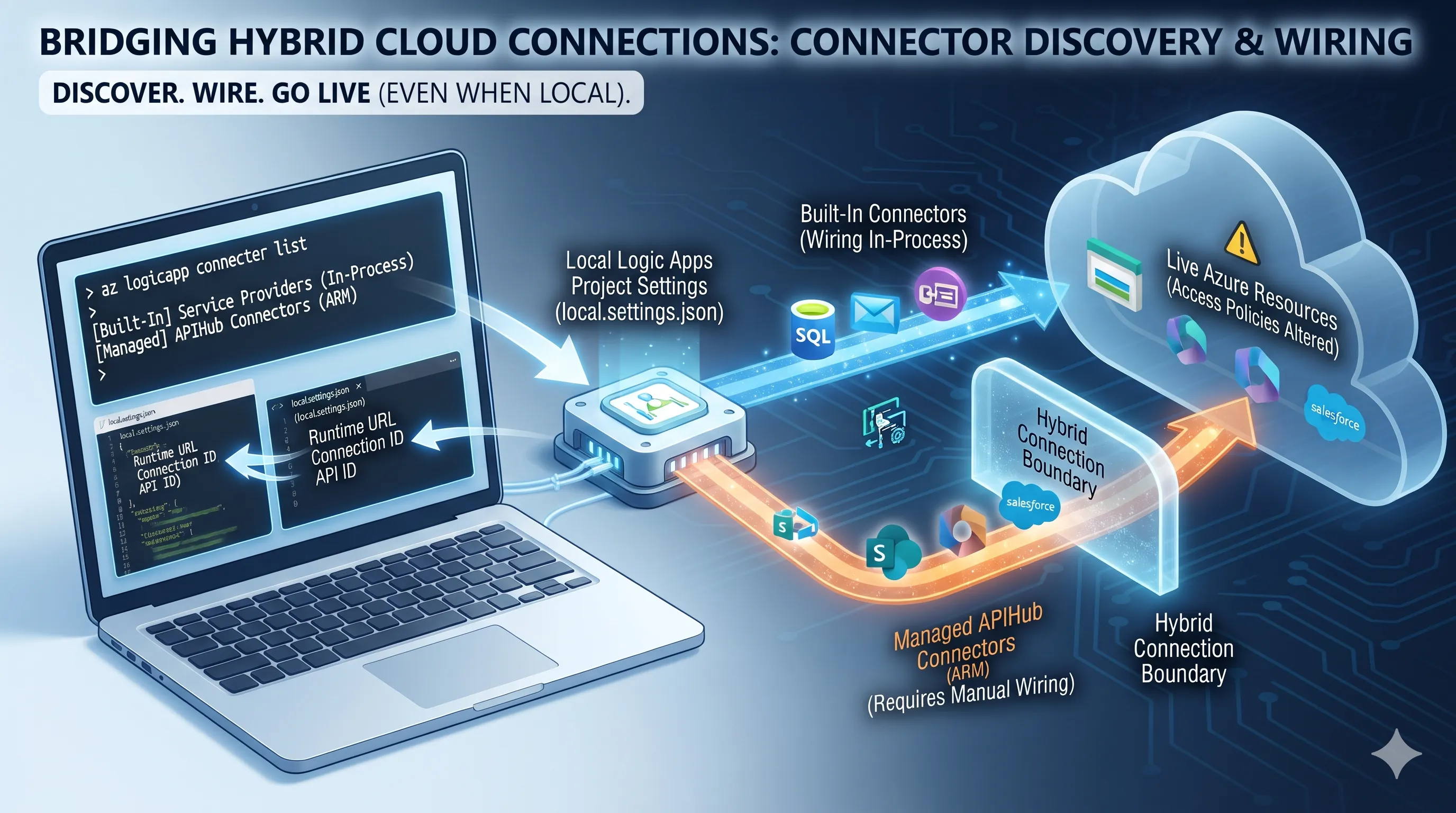
The CLI command connector list differentiates between local built-in service-provider connectors and regional Azure Resource Manager (ARM) APIHub managed connectors.Built-in service providers execute in-process within the Logic Apps Standard runtime, whereas ARM APIHub connectors interact with hosted services in Azure regions.
To understand the contracts for these integrations, developers utilize the operation show command.
This command inspects specific operations, revealing their input schemas and expected authentication parameter sets directly from the terminal.
Manual Connection Wiring and Workstation Identity Governance
Managing hybrid integrations introduces specific operational limitations and identity constraints.When working with managed connections, executing connection show --show-runtime-urls retrieves the managed connection runtime endpoint, the connection ID, and the API ID.
However, the CLI does not automatically write local managed-connector configuration into workspace files.
Instead, developers must manually merge these connection parameters into the managedApiConnections section of their project settings.
Authentication workflows also demand deliberate credential governance.
The tooling supports managed identity authentication, which is configured by updating local.settings.json and workflow-designtime/local.settings.json with developer principal credentials.
Local workstations do not impersonate application managed identities during design or execution.
Consequently, developer principals must be granted explicit role assignments, such as Storage Blob Data Contributor, directly on target resources.
Furthermore, creating managed API connections occurs directly against live Azure and Microsoft 365 resources, altering deployed access policies even during local development cycles.
As Microsoft documentation cautions: "The workflow runs on your workstation; the mailbox, managed connection, and storage account remain in Azure and Microsoft 365. Local doesn't mean offline."
5. Execution Diagnostics, Run Replay, and Native Test Scaffolding
Observability and verification form the backbone of local enterprise workflow orchestration.Within the Local CLI for Logic Apps Standard Workflow Management, runtime diagnostics and testing tools provide visibility directly inside terminal environments, bridging developer feedback loops without requiring portal-based intervention.
Stateful Execution Monitoring and Trigger Replay
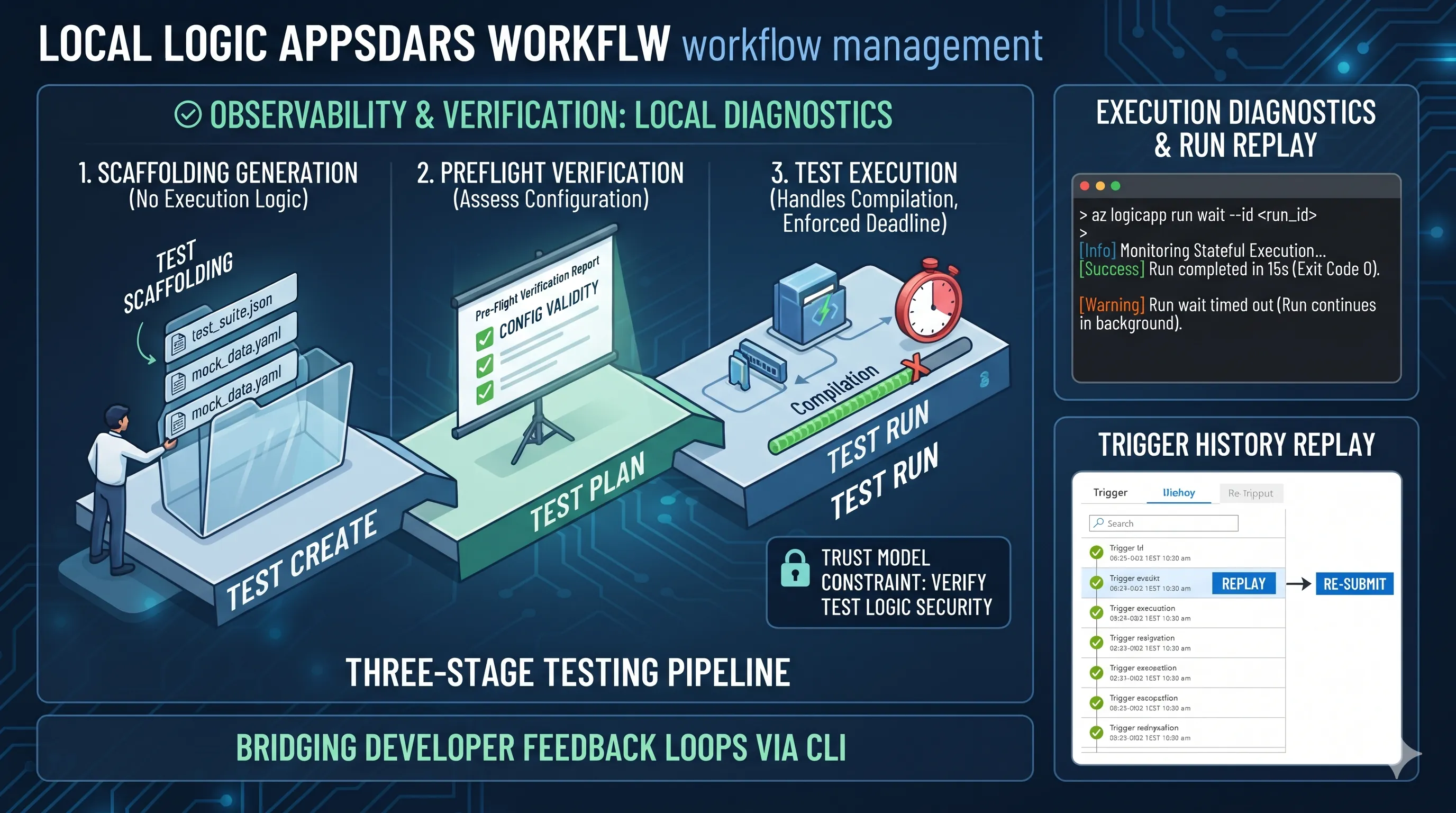
The CLI integrates active telemetry commands tailored specifically to workflow lifecycle inspection.The run wait command monitors Stateful executions directly from the console, exiting with code 0 only when a workflow run transitions into a successful terminal state before reaching its configured deadline.
Developers should note an operational nuance: timing out on run wait does not cancel the executing run in the underlying runtime, meaning disconnected monitoring will leave asynchronous operations proceeding in the background.
When troubleshooting pipeline degradation, the run action show command inspects action metadata and downloads recorded inputs and outputs to facilitate granular failure diagnosis.
To streamline repro steps and audit discrepancies, the CLI provides trigger history, which allows replaying and resubmitting executions directly from explicit retained trigger records.
Three-Stage Testing Pipeline and Trust Model Constraints
Automated verification is structured through a segmented three-stage safe testing model designed to isolate environment preparation from active execution.| Testing Stage Command | Primary Function | Execution Scope |
|---|---|---|
| test create | Scaffolding generation | Sets up test files and scaffolding only, without invoking execution logic. |
| test plan | Preflight verification | Generates a preflight validation report only, assessing configuration validity prior to execution. |
| test run | Test execution | Handles compilation and initiates test execution enforced under a strict deadline. |
Extension author Riley Evans noted in the pull request that native SDK test code is executed with direct user trust rather than inside an isolated sandbox, requiring engineers to verify test logic security before execution.
Evans also highlighted that an agent bootstrap command does not exist yet for setting up test environments automatically.
Furthermore, the test SDK and execution engine exhibit a reported typed-output limitation during preview, constraining certain strongly typed evaluations.
Finally, cross-platform CI boundaries persist: passing test suites on Linux CI does not guarantee native SDK execution or live Azure compatibility, requiring validation against actual hosted environments before production rollout.
6. Deterministic AI-Assisted Engineering and GitHub Copilot Integration
The Local CLI for Logic Apps Standard Workflow Management bridges standard local orchestration development with modern artificial intelligence workflows by serving as an authoritative execution layer.
Rather than leaving autonomous agents or human-guided assistants to rely on unverified generation patterns, the CLI establishes an environment where automated tooling can interact directly with the local runtime.
Authoritative Shell Grounding and Stdin Secret Handling
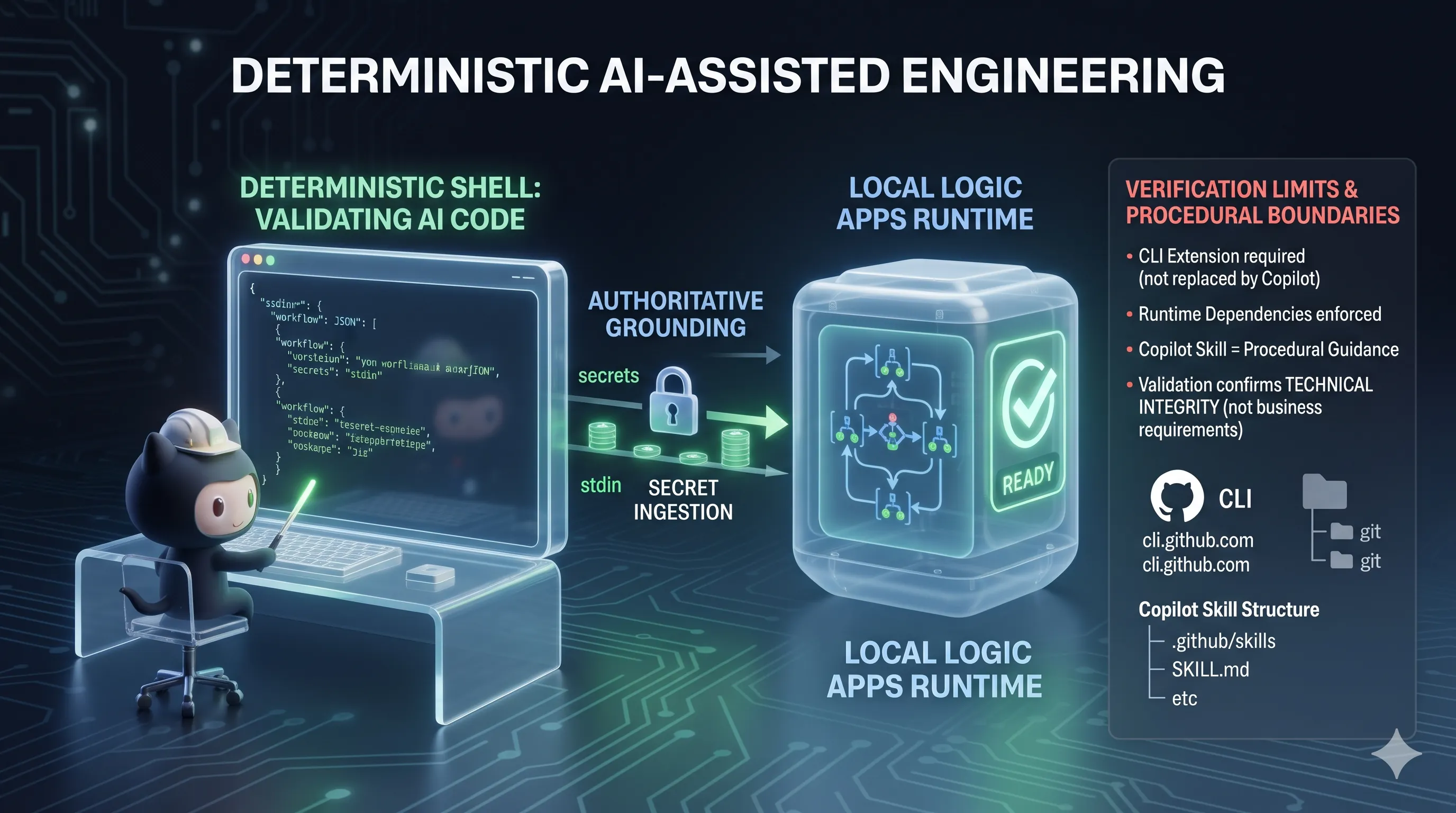
The local CLI provides a deterministic command interface that allows autonomous or human-approved coding agents to validate, run, and diagnose workflows with precision.
Sagar Sharma stated that the CLI is "literally pitched as adding determinism to local AI-assisted coding" because an agent without deterministic validation is merely guessing.
Similarly, Sonny Gillissen described the CLI as providing an AI coding assistant "with an authoritative shell instead of assumptions."
This deterministic shell prevents hallucinated syntax from propagating through the project lifecycle by enforcing immediate validation against actual runtime constraints.
Security is maintained during automated execution because the CLI handles secrets passed through stdin rather than plaintext command-line arguments.
Piping sensitive inputs directly via standard input prevents tokens, credentials, and connection strings from leaking into process listings, command histories, or agent conversation logs.
Awesome Copilot Skill Structure and Verification Limits
Integration with GitHub Copilot is formalized through the azure-logic-apps-standard-cli skill available on Awesome Copilot.
The skill supplies Copilot with specific procedures for schema discovery, identity-first configuration, and preflight inspection before any workflow deployment occurs.
To install and execute the skill correctly, the host environment requires GitHub CLI version 2.90.0 or later.
The Copilot skill package also demands a specific file bundle structure: users must keep SKILL.md, README.md, and all five bundled reference files together under either the .github/skills or .copilot/skills directory.
| Integration Dimension | Requirement or Boundary Definition |
|---|---|
| CLI Dependency | Requires GitHub CLI version 2.90.0 or later. |
| Directory Structure | SKILL.md, README.md, and all five bundled reference files must reside together under .github/skills or .copilot/skills. |
| Secret Ingestion | Handles secrets passed through stdin rather than plaintext command-line arguments. |
| Procedural Role | Provides procedures for schema discovery, identity-first configuration, and preflight inspection; acts as procedural guidance and does not replace the CLI extension, runtime dependencies, or Copilot permission controls. |
| Validation Boundary | A successful CLI operation or agent validation run does not verify whether business requirements are met. |
Engineering teams must maintain clear procedural boundaries when incorporating AI agents into Logic Apps Standard projects.
The Copilot skill acts strictly as procedural guidance and does not replace the CLI extension, underlying runtime dependencies, or Copilot permission controls.
Furthermore, a successful CLI operation or agent validation run confirms technical syntax and execution integrity, but it does not verify whether business requirements are met.
Related Posts
Generative AI may have assisted with research or drafting for this article. Topic selection, fact-checking, final wording, and publication remain the responsibility of DragonStone74. AI use disclosure