AI Agents for Web and Desktop Automation: Stagehand and Claude's Computer Use Tool
🚀 Key Takeaways
- Stagehand offers AI primitives and Playwright-style APIs for robust, self-healing web automation, overcoming the brittleness of traditional selectors.
- Stagehand is built for modern development with first-class SDKs, fast in-browser runtime, and capabilities for typed data extraction and flexible LLM integration.
- Anthropic's Claude computer use tool empowers AI agents to interact autonomously with entire computer environments via screenshots and mouse/keyboard control.
- The Claude computer use tool operates through an agent loop, executing actions within a sandboxed virtual desktop environment and supporting batch operations.
- Automating with AI agents shifts from fixed selectors to natural language and visual screen recognition for more resilient UI interaction.
- AI-powered automation is essential for tackling repetitive web admin tasks by offering intelligent exception handling and streamlined data extraction.
- Implementing AI computer use tools requires careful consideration of security, sandboxed environments, and prompt optimization to mitigate inherent risks.
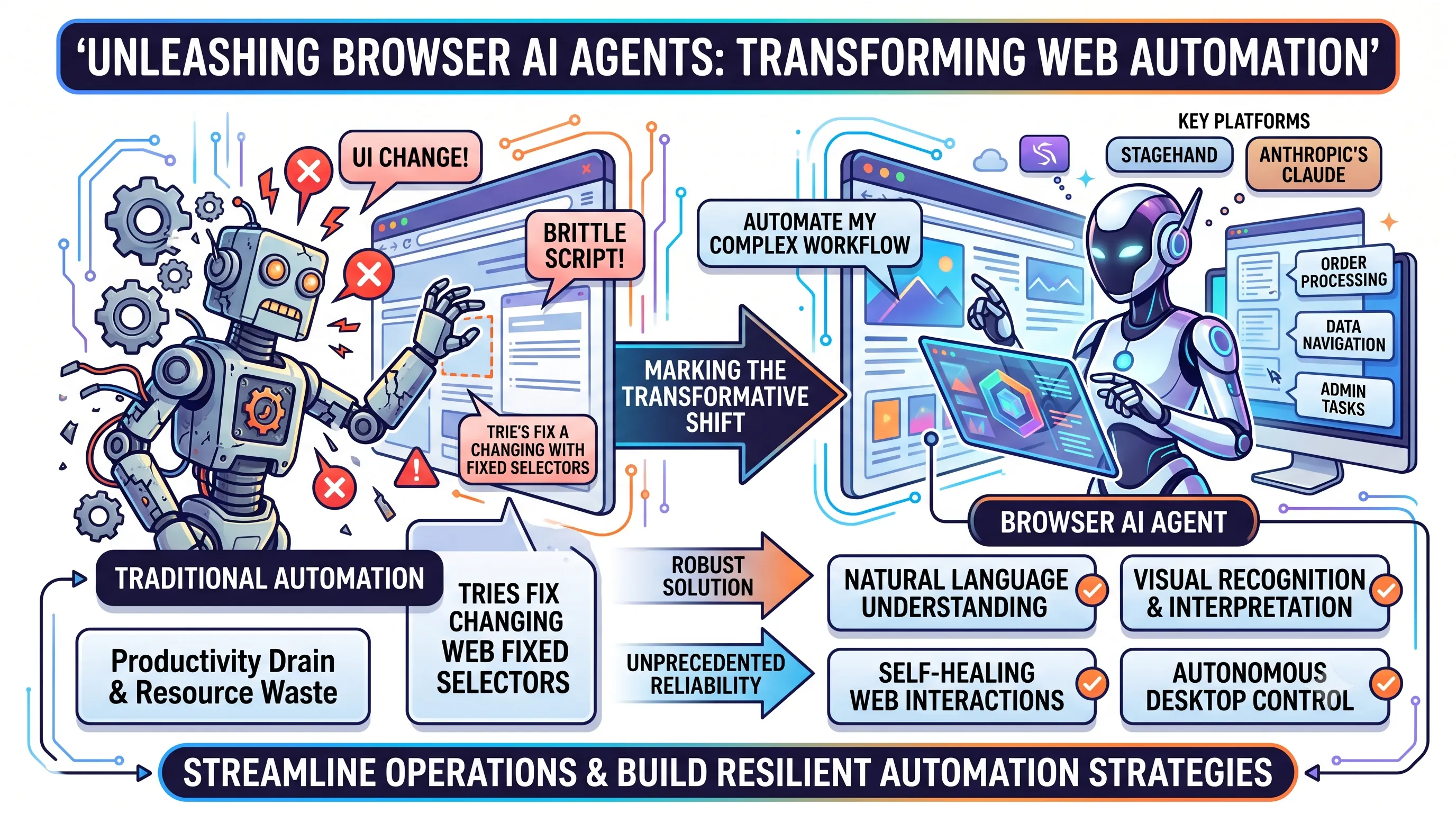
Traditional automation methods often struggle with dynamic web environments, breaking down due to minor UI changes or unexpected pop-ups, leading to brittle and unreliable scripts.
This creates a pressing need for more intelligent and adaptable solutions to streamline operations. The advent of browser AI agents marks a transformative shift in automation, moving beyond fixed selectors to systems that can visually interpret and interact with screens much like a human.
These advanced agents, exemplified by platforms like Stagehand and Anthropic's Claude computer use tool, offer robust solutions for automating complex web and desktop workflows.
By leveraging natural language understanding and visual recognition, they promise unprecedented reliability and self-healing capabilities in dynamic online environments. Understanding and implementing these cutting-edge AI tools is crucial for organizations looking to unlock true efficiency and build resilient automation strategies.
From self-healing web interactions to autonomous desktop control, browser AI agents are redefining what's possible in the realm of administrative task automation, making operations smarter and more adaptable than ever before.
1. Understanding AI: Core Concepts and Key Players
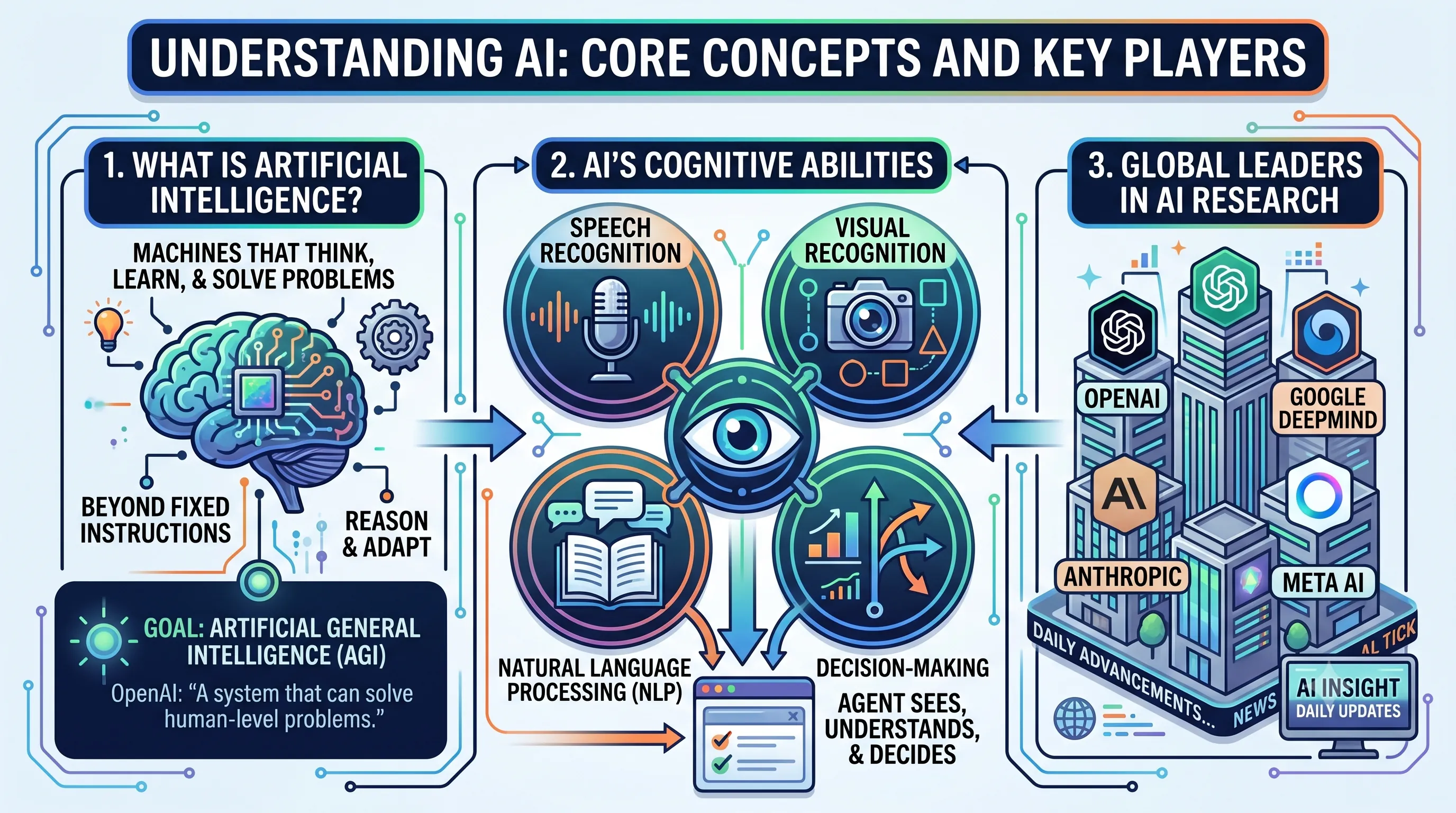
To fully grasp how a browser AI agent can watch a screen and automate tasks, it's essential to first understand the foundational technology that powers it. This section defines Artificial Intelligence, outlines its core capabilities, and introduces the major organizations at the forefront of its development, providing the necessary context for the practical applications discussed throughout this article.What is Artificial Intelligence?
At its core, Artificial Intelligence (AI) is a field of technology centered on creating machines capable of thinking, learning, and solving problems in a manner similar to humans.The objective is to move beyond simple programmed instructions and develop systems that can reason and adapt.
A prominent goal within the AI community is the creation of artificial general intelligence (AGI).
Leading research lab OpenAI defines AGI as a system that can solve human-level problems, a mission that underscores their long-term research direction.
This ambition is clearly stated in their view that "our research will eventually lead to artificial general intelligence, a system that can solve human-level problems."
AI's Cognitive Abilities
AI technology achieves its goals by mimicking a range of human cognitive abilities.These capabilities are the building blocks that enable sophisticated applications, including the web automation agents that are the focus of our main topic.
Key functions include:
- Speech Recognition: Understanding and processing spoken language.
- Visual Recognition: Identifying and interpreting objects and activities in images and video.
- Natural Language Processing (NLP):: Comprehending and generating human-like text.
- Decision-Making: Analyzing data to make logical choices and predictions.
Global Leaders in AI Research
The rapid advancements in AI are driven by a handful of influential research and development organizations.These companies are consistently pushing the boundaries of what is possible and are frequently featured in specialized news platforms like AI Insight, which delivers daily updates on the field.
The key players shaping the modern AI landscape include:
- OpenAI
- Google DeepMind
- Anthropic
- Meta AI
2. Beyond Brittle Selectors: AI Agents vs. Traditional Automation
This section provides a crucial comparison that highlights the fundamental limitations of past automation methods, setting the stage for understanding the robust, vision-based approach of the AI agents we will build in this article.Limitations of Traditional Automation
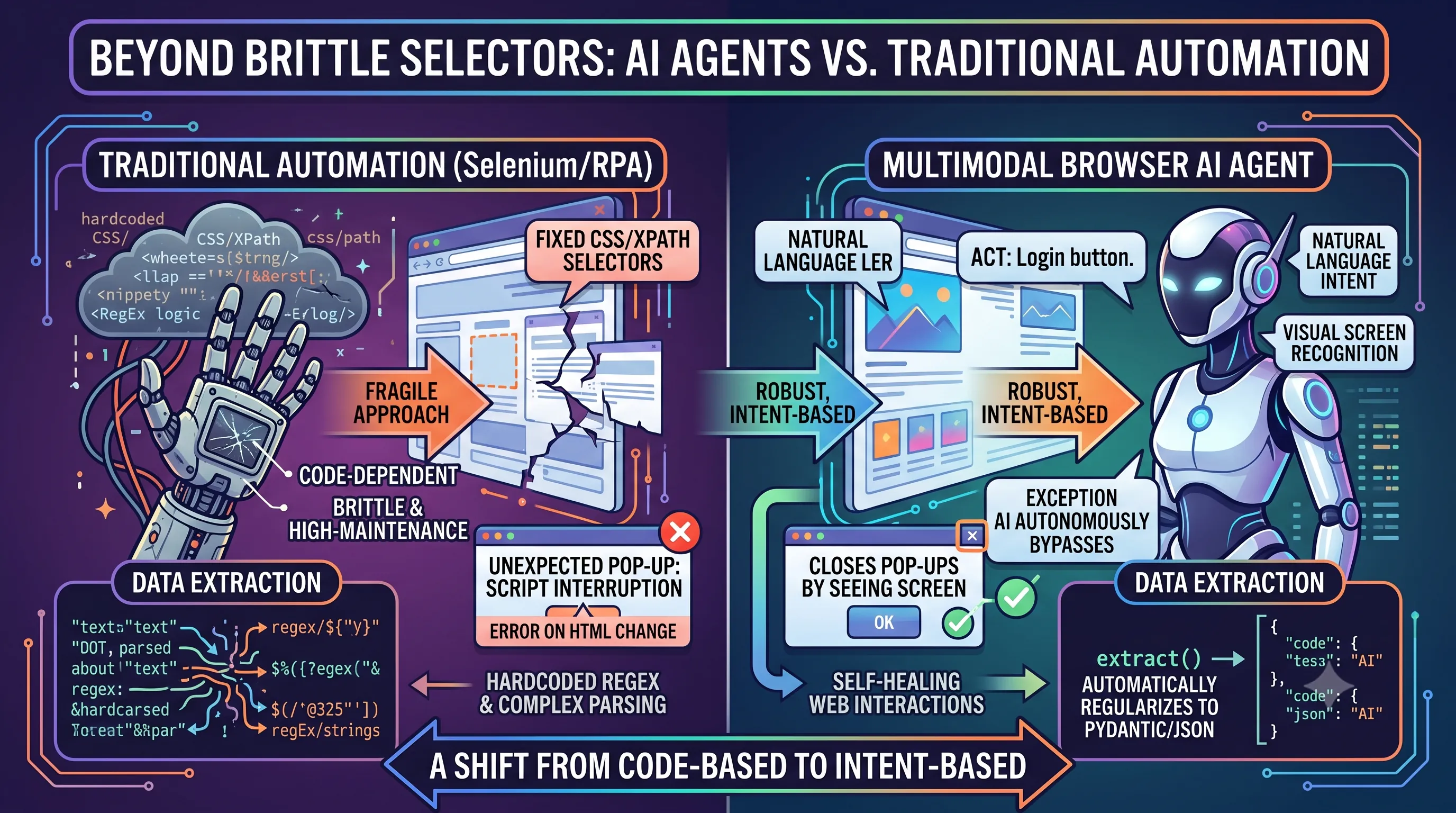
For years, web automation has been dominated by tools like Selenium and various RPA solutions.These traditional crawlers and macros operate on a rigid, code-dependent foundation.
Their primary method for interacting with a webpage is through fixed CSS or XPath selectors, which are hardcoded pointers to specific elements in the site's HTML structure.
The major drawback of this approach is its fragility; even a minor change to the website's HTML, such as a developer renaming a class or restructuring a `
Furthermore, these tools struggle with dynamic web environments.
When an unexpected element like a promotional pop-up or a cookie consent banner appears, the script often interrupts because it cannot find the element it was programmed to look for.
Data extraction is similarly rigid, requiring developers to write and maintain hardcoded regular expressions and complex parsing logic to scrape information from the page source.
This makes the automation brittle and high-maintenance.
Advantages of Multimodal AI Agents
In contrast, multimodal browser AI agents represent a paradigm shift from code-based instructions to intent-based actions.Instead of relying on fragile selectors, these agents use a combination of natural language intent and visual screen recognition to discover elements.
A user can simply command the agent to `act` on a "login button," and the agent will visually identify the correct element on the screen, regardless of its underlying HTML.
This visual understanding makes them exceptionally resilient to unexpected events.
If a pop-up appears, the AI can autonomously bypass the exception by visually interpreting the screen and performing the necessary action, such as clicking the "close" button, before proceeding with its main task.
Data extraction is also streamlined significantly.
Rather than complex parsing, a developer can use a simple `extract()` call, and the agent will automatically regularize the targeted data into structured Pydantic or JSON formats, removing the need for custom, site-specific logic.
Key Differences in UI Automation Approaches
The fundamental differences in how these two generations of tools approach automation tasks determine their robustness, flexibility, and maintenance overhead.The following table directly compares their core methodologies.
| Category | Traditional Crawler/Macro (Selenium/RPA) | Multimodal Browser AI Agent |
|---|---|---|
| Element Discovery | Fixed CSS/XPath selectors (Error on HTML change) | Natural language intent (act) and visual screen recognition |
| Exception Handling | Script interruption on pop-up or layout change | AI autonomously bypasses (e.g., closes pop-ups) by seeing the screen |
| Data Extraction | Hardcoded regex and complex parsing logic | `extract()` call automatically regularizes to Pydantic/JSON |
3. Introducing Stagehand: AI-Powered Web Automation for Developers
This section introduces Stagehand, a specific tool that exemplifies the core theme of the main article: using AI-powered browser agents for automation.While the broader article discusses the concepts and practices of automating web admin tasks, this deep-dive explores a developer-focused framework designed to make such automation both powerful and reliable, directly addressing the practical challenges developers face.
Stagehand's Core Mission and Features
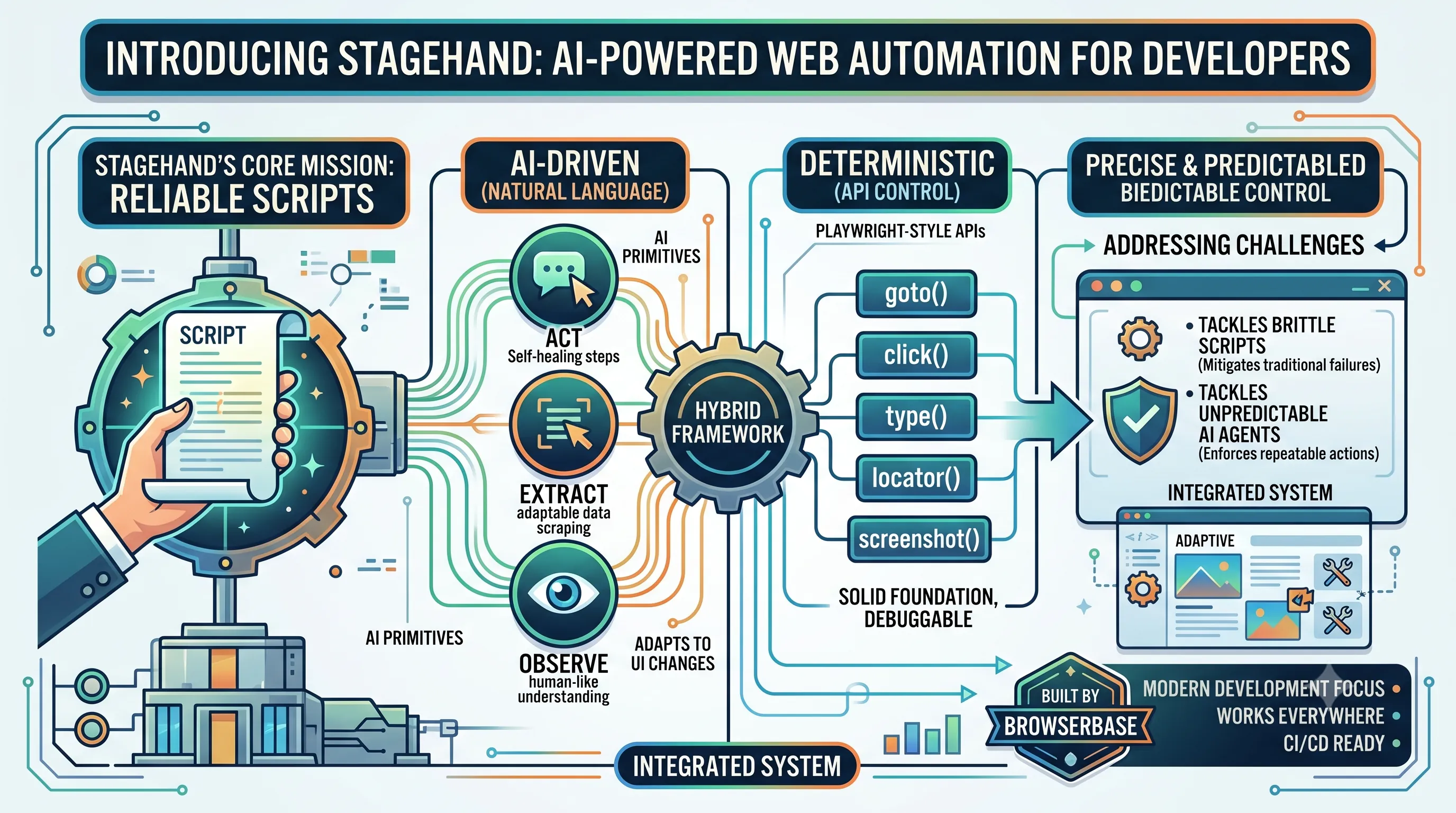
Stagehand is engineered with a clear purpose: to empower developers to build reliable web automation scripts.It achieves this by providing a unique combination of AI-driven flexibility and deterministic control, merging two powerful paradigms into a single framework.
At its core are AI primitives—act, extract, and observe—which allow for self-healing steps based on natural language instructions.
This enables scripts to adapt to minor changes in a website's UI without breaking.
For tasks requiring precise and predictable control, Stagehand offers a suite of familiar Playwright-style APIs.
These deterministic functions include commands like goto, click, type, locator, and screenshot, giving developers a solid foundation for direct browser manipulation when ambiguity is not an option.
| Automation Approach | Key Functions / Primitives | Primary Benefit |
|---|---|---|
| AI-Driven (Natural Language) | act, extract, observe | Provides self-healing capabilities to resist breakage from website UI changes. |
| Deterministic (API Control) | goto, click, type, locator, screenshot | Offers precise, predictable, and debuggable browser control similar to Playwright. |
Addressing Automation Challenges
The design of Stagehand directly confronts two fundamental problems in browser automation.First, it tackles the brittleness of traditional automation scripts.
Scripts that rely on rigid selectors often fail the moment a website's layout or class names are updated.
Stagehand's AI primitives mitigate this by interpreting instructions in a more human-like way, locating elements based on context rather than fixed paths.
Second, Stagehand addresses the unpredictability of pure AI agents.
While powerful, general-purpose AI agents can be difficult to debug and may behave inconsistently.
By integrating Playwright-style APIs, Stagehand provides developers with escape hatches to enforce exact, repeatable actions, creating a hybrid system that is more robust and easier to maintain than solutions relying solely on one approach.
Built by Browserbase: Modern Development Focus
Stagehand is developed by the team at Browserbase.This background informs its design philosophy, which is explicitly tailored for modern development workflows.
The framework is built to "work everywhere," ensuring compatibility and ease of integration into contemporary CI/CD pipelines and diverse development environments, making it a practical choice for today's engineering teams.
4. Stagehand's Technical Edge: SDKs, Runtime, and Agent Integration
While our main article focuses on the practical application of automating web admin tasks, this section examines the core technology that makes such sophisticated browser automation possible. We will explore Stagehand's developer-centric SDKs, its unique runtime architecture, and how it is engineered to integrate seamlessly into the broader AI agent ecosystem, serving as the crucial link between a controlling intelligence and the web interface.Cross-Language SDKs and Performance
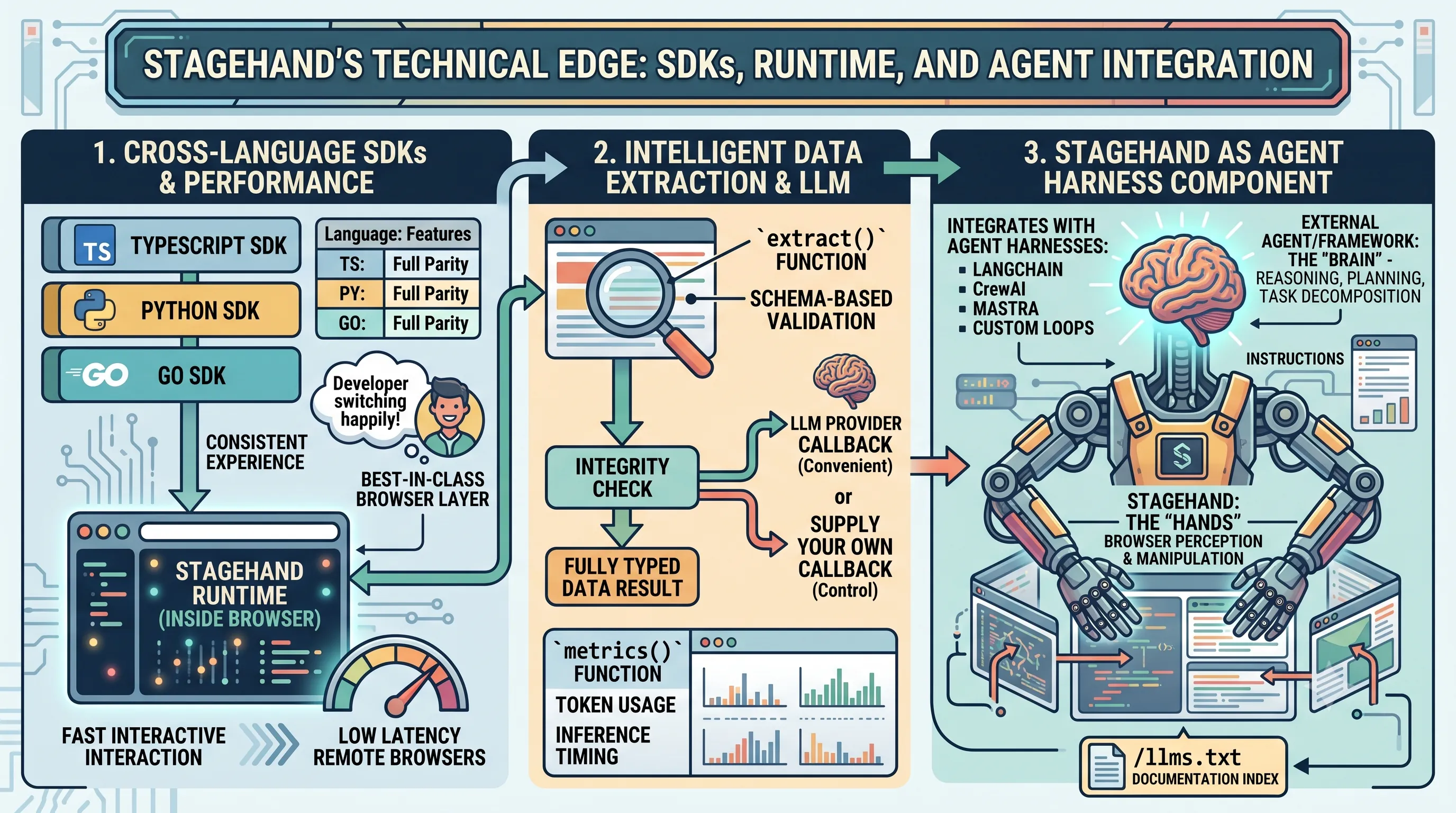
Stagehand provides a consistent and powerful developer experience by offering first-class Software Development Kits (SDKs) for TypeScript, Python, and Go.A key design principle is parity across these languages, meaning every method and option is engineered to match, allowing development teams to work in their preferred environment without sacrificing functionality or learning a new API structure.
This multi-language support ensures broad applicability for various backend systems and developer skill sets.
| SDK Language | Feature Parity |
|---|---|
| TypeScript | Full method and option parity with other SDKs. |
| Python | Full method and option parity with other SDKs. |
| Go | Full method and option parity with other SDKs. |
This approach has a significant impact on latency, making interactions with remote browsers feel as fast and responsive as those running on a local machine.
This is a critical advantage for developers who need to build, test, and debug complex automation workflows interactively.
Intelligent Data Extraction and LLM Integration
Beyond simple browser control, Stagehand incorporates intelligent features for data handling and model interaction.The `extract` function is a cornerstone of this capability, designed to validate results against a user-defined schema.
This ensures data integrity and immediately returns fully typed data, which improves code reliability and the developer experience by enabling static analysis and autocompletion.
Stagehand also offers significant flexibility in Large Language Model (LLM) usage.
Developers can either reference supported model providers directly by name or supply their own client-side LLM callback.
This dual approach allows teams to choose between the convenience of managed services and the control of using custom, local, or specialized models.
To help manage the operational costs and performance of these models, Stagehand includes a built-in `metrics()` function.
This utility provides granular, per-method data on token usage and inference timing, giving developers the visibility needed to optimize their agent's efficiency.
Stagehand as an Agent Harness Component
Stagehand is purposefully designed for composability within larger agentic systems.It excels in its role as the 'hands' of an operation—the component responsible for direct browser perception and manipulation.
This allows an external agent or framework to act as the 'brain', handling high-level reasoning, planning, and task decomposition.
This architecture makes Stagehand an ideal component for agent harnesses like LangChain, CrewAI, Mastra, or even custom-built agent loops.
By focusing on being the best-in-class browser interaction layer, it empowers developers to build more complex and capable AI agents without having to reinvent low-level web automation.
Developers seeking to implement these integrations can find a complete documentation index at `/llms.txt`.
5. Exploring Claude's Computer Use Tool: Autonomous Desktop Interaction
While our main focus is on automating tasks within a web browser, it's crucial to understand alternative approaches for workflows that extend beyond a single webpage. The Claude computer use tool represents a significant step towards broader automation, allowing an AI agent to see and interact with an entire desktop environment, not just the contents of a browser tab. This section explores this powerful toolset, its capabilities, and when it serves as a better choice than more web-specific solutions.Claude's Expansion into Desktop Automation
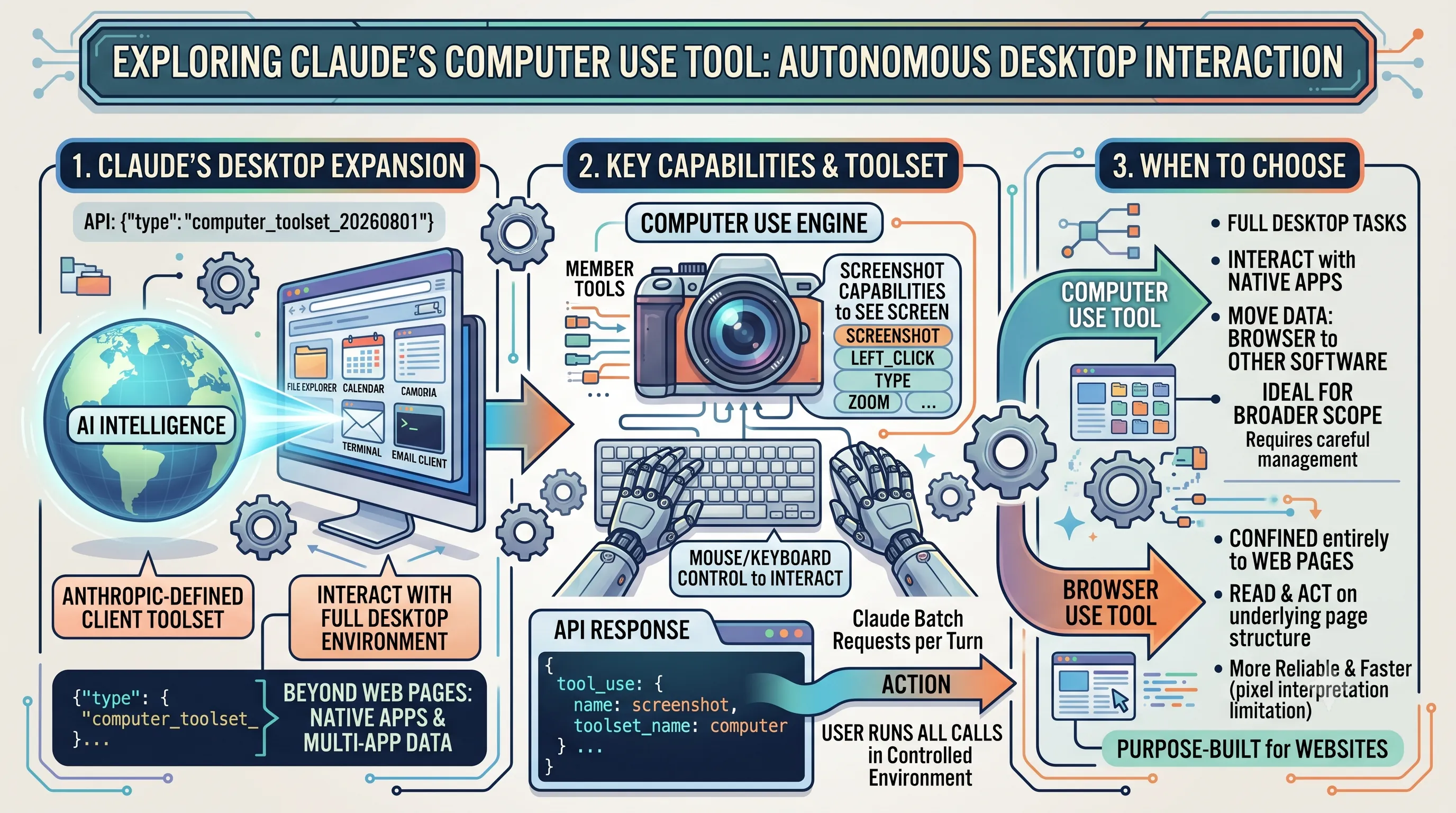
The Claude computer use tool is an Anthropic-defined client toolset designed to enable Claude to interact directly with computer environments.This tool empowers the AI to move beyond structured web data and operate on the graphical user interface of a desktop, much like a human user would.
In the Anthropic API, this toolset is officially identified by the type `{"type": "computer_toolset_20260801"}`.
It is generally available on the Claude API and does not require a beta header for access, making it readily available for developers building custom automation solutions.
Key Capabilities and Toolset
The core functionality of the computer use tool revolves around two primary capabilities: it provides Claude with screenshot capabilities to see the screen and mouse/keyboard control for autonomous desktop interaction.This functionality is delivered through a collection of 17 member tools, including fundamental actions such as `screenshot`, `left_click`, `type`, and `zoom`.
When implementing this tool, your application is responsible for running every call from the computer use tool in an environment that you control, ensuring security and oversight.
Claude's requests are structured as `tool_use` blocks in the API response.
Within these blocks, the `name` field specifies the individual member tool being called, and they carry a `"toolset_name": "computer"` identifier.
For efficiency, Claude often sends several tool calls per turn as a single batch action, allowing it to perform complex sequences of operations quickly.
When to Choose Computer Use vs. Browser Use Tools
Choosing the right tool depends entirely on the scope of the automation task.The computer use tool is the ideal choice for tasks that require navigating a full desktop environment, interacting with native applications, or moving data between a browser and other software.
However, it is important to note a current limitation: the computer use tool is not available in Claude Managed Agents.
For tasks that are confined entirely to webpages, Anthropic's browser use tool is a closer and more efficient fit.
The browser tool is purpose-built to read and act on the underlying structure of the page itself, which is often more reliable and faster than interpreting pixels from a screenshot of a full desktop environment.
6. Inside Claude's Agent Loop: Environment, Implementation, and Optimization
This section provides a technical deep-dive into the core mechanics of the browser AI agent featured in this article.We will explore the agent's operational cycle, the isolated environment it runs in, how its actions are executed, and strategies for optimizing its performance and cost.
Understanding these components is essential for effectively implementing and troubleshooting the automation of repetitive web admin tasks.
The Agent Loop: From Request to Result
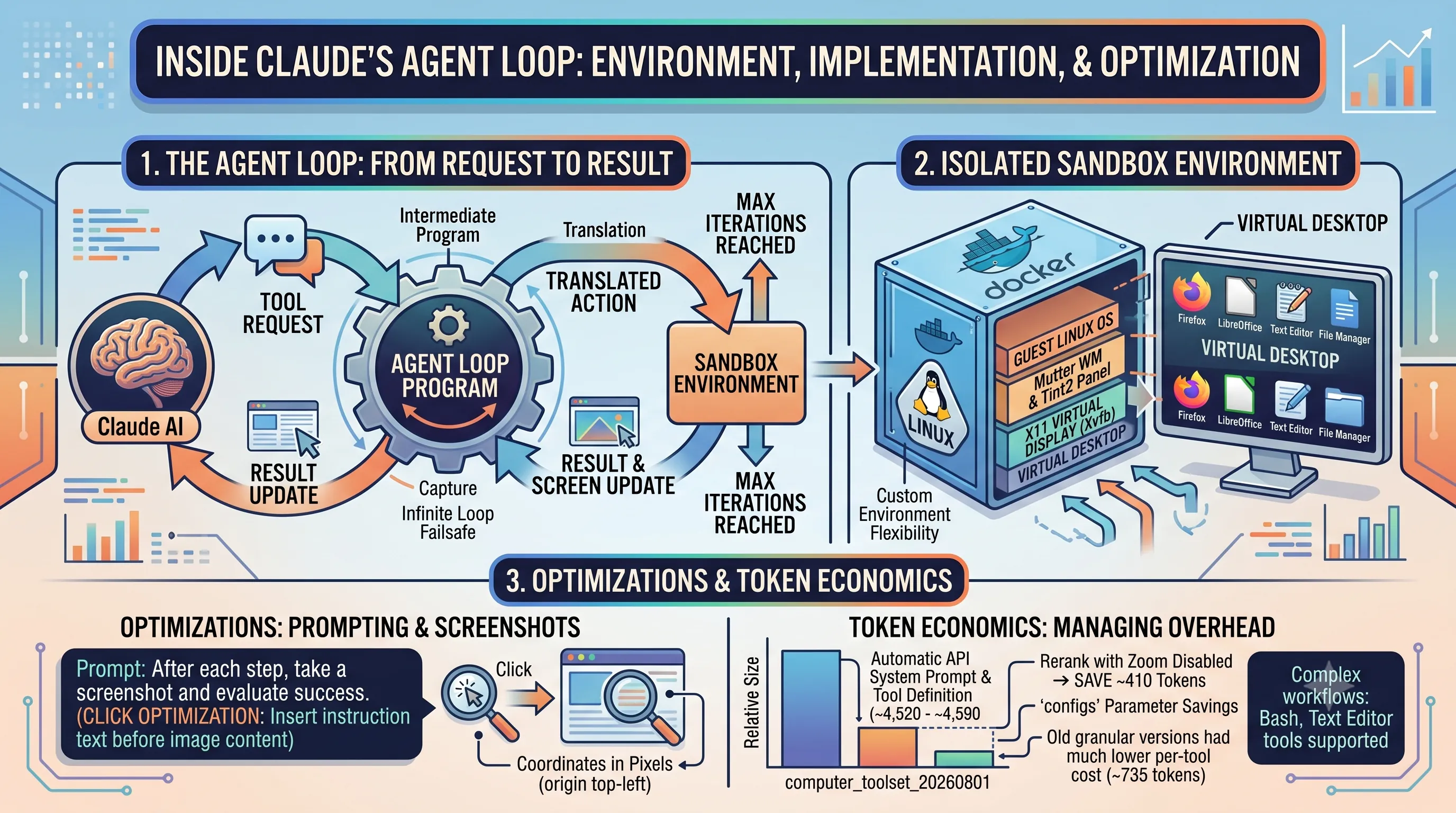
The foundation of the computer use tool is a cyclical process known as the 'agent loop'.This loop begins when Claude requests one or more tool actions to perform a task on the virtual desktop.
It is crucial to understand that Claude does not directly connect to or operate within this environment.
Instead, a user-created agent loop program acts as an intermediary.
This program receives the tool use requests from Claude, translates them into actual operations, executes them in the sandboxed environment, captures the results (such as screen updates), and then returns this information to Claude.
This cycle of request, execution, and result continues until one of two conditions is met: either Claude completes the task and responds without requesting any further tool actions, or a pre-defined maximum iteration limit is reached, which serves as a failsafe to prevent infinite loops.
Setting Up the Sandboxed Environment
For security and reproducibility, the entire operation takes place within a sandboxed computing environment.The reference implementation uses a Docker container to achieve this necessary isolation.
Inside this container, a complete, albeit lightweight, graphical desktop environment is simulated.
A virtual X11 display server, specifically Xvfb (X Virtual Framebuffer), is used to render the desktop interface without needing a physical monitor.
This virtual display runs a lightweight UI featuring the Mutter window manager and the Tint2 panel on a Linux operating system.
The environment comes pre-loaded with a suite of essential Linux applications, including the Firefox browser, the LibreOffice suite, various text editors, and file managers, making it ready for a wide range of web and desktop automation tasks.
While a reference implementation is provided, users have the flexibility to build their own custom environments, which involves setting up a virtualized or containerized system, implementing the tool actions, and coding the agent loop.
Implementing Tool Actions and Batch Processing
The bridge between Claude's abstract commands and concrete actions on the virtual desktop is the "tool implementation" code.This is the logic you write to handle each type of action Claude can request, such as clicking a mouse, typing text, or taking a screenshot.
The implementation process involves creating functions that process Claude's tool calls in their specified order and execute the corresponding operations within the virtual display.
To enhance efficiency, Claude can utilize batch actions.
This feature allows the model to plan a short sequence of actions—for example, a click followed by typing and then a screenshot—and return them all together in a single response.
The application then runs these action blocks sequentially.
This approach has a built-in error handling mechanism: if any action in the batch fails, an `is_error: true` status with a descriptive message is returned for that action.
Crucially, all subsequent actions within that same batch are skipped, and they are returned with an `is_error: true` status and a specific halt text, preventing the agent from continuing a flawed sequence of operations.
Prompting and Screenshot Optimizations
The performance and accuracy of the agent can be significantly improved through careful prompting and configuration.Providing Claude with explicit instructions in your prompt, such as "After each step, take a screenshot and carefully evaluate if you have achieved the right outcome," can guide the model to be more deliberate and self-correcting.
A subtle but effective optimization is to place instructional text before any screenshot images within the content array of a user's turn; this has been shown to improve the accuracy of click actions.
All coordinates for actions like clicks are specified in pixels relative to the full-display screenshots, with the origin (0,0) at the top-left corner.
Managing token consumption is also a key aspect of optimization.
The computer use tool is schema-less, meaning its definition is built directly into Claude's model and cannot be modified.
When you include the tool in a request, the API automatically adds a computer use-specific system prompt and the full tool definition, which carries a notable token overhead.
| Tool Version | Overhead Type | Approximate Input Token Cost | Notes |
|---|---|---|---|
computer_toolset_20260801 |
Tool Definition | ~4,520 tokens | On Claude Fable 5, Mythos 5, Opus 5, Opus 4.8. Rises to ~4,590 on Claude Sonnet 5. |
computer_toolset_20260801 |
(Zoom Disabled) | ~4,110 tokens | Disabling the zoom tool via configs removes about 410 tokens from the overhead. |
computer_20250124 (Older) |
Tool Definition | ~735 tokens per tool | This was the overhead in an earlier, more granular version. |
computer_20251124 (Older) |
System Prompt | 466–499 tokens | This was the system prompt overhead for previous versions. |
However, you can use the `configs` parameter in the toolset entry to withhold specific tools if your environment cannot support them, such as withholding `zoom` if you cannot produce zoomed-in images, which also provides the token savings noted above.
For more granular control, setting `disable_parallel_tool_use: true` in the `tool_choice` parameter will limit Claude to using at most one member `tool_use` block per turn.
Finally, the computer use tool can be declared in the same `tools` array as other tools, such as the bash tool or text editor tool, allowing for complex, multi-tool workflows.
7. Mitigating Risks and Optimizing Performance with Claude's Computer Use
While the main article demonstrates the power of automating web admin tasks with browser AI, this section provides the essential knowledge for transitioning from a simple proof-of-concept to a robust, secure, and efficient implementation. We will explore the critical security precautions, performance optimization techniques, and inherent limitations of using Claude's computer use tool, ensuring your automation is both effective and responsible.Security Best Practices and Risk Mitigation
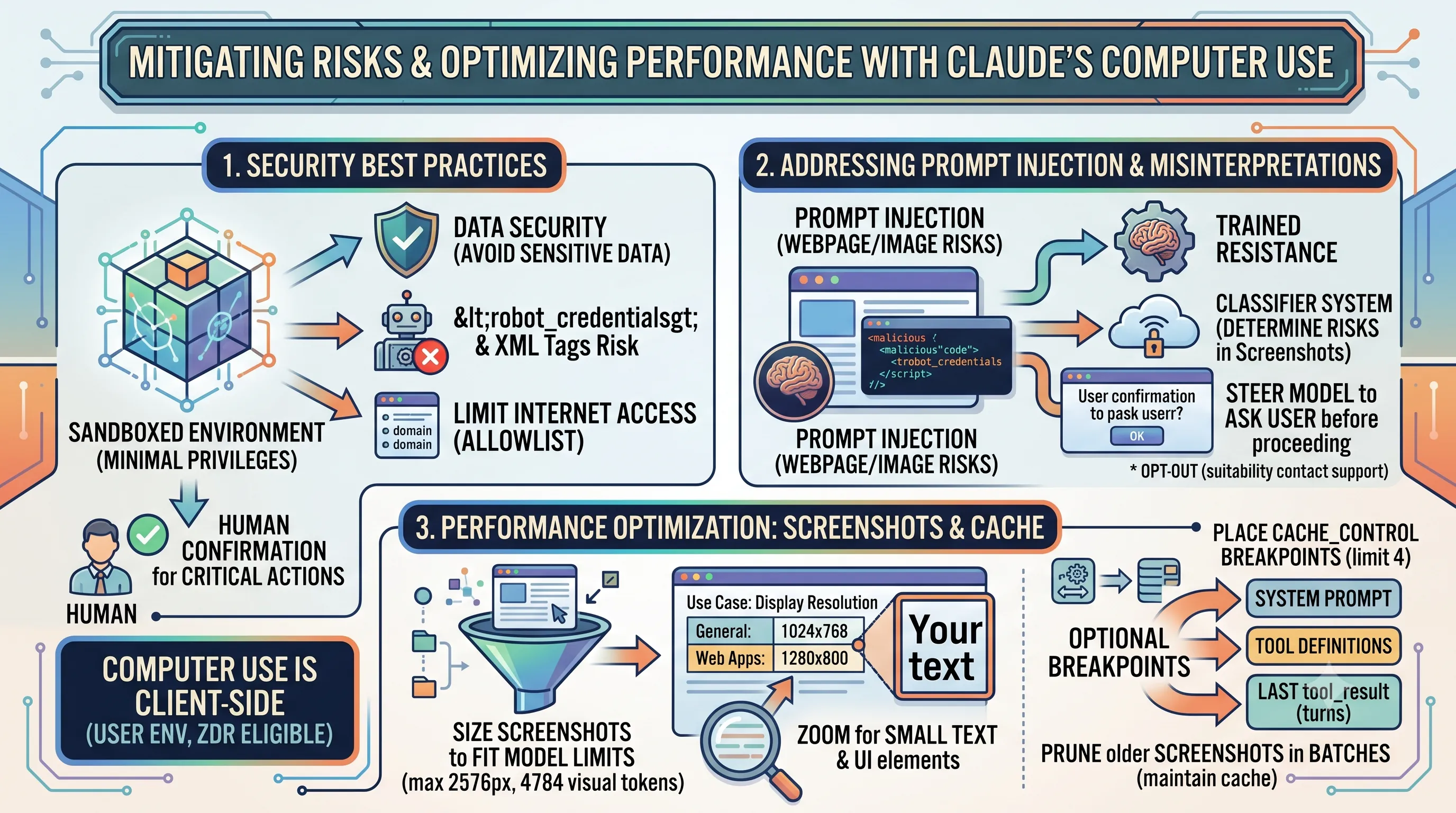
Interacting with the internet and local files introduces security risks unique to computer use tools, which are distinct from standard API features. The primary best practice is to operate within a sandboxed environment. This means running the agent in a dedicated virtual machine or container with minimal privileges, severely limiting its potential impact on the host system.Data security is paramount. You should avoid giving the model access to sensitive data, such as account login information, to prevent potential information theft. While credentials can be provided in the prompt using XML tags like
<robot_credentials>, be aware this significantly increases the risk of prompt injection attacks. To further reduce the attack surface, it is highly recommended to limit the model's internet access to an allowlist of pre-approved domains.For any action that could have meaningful real-world consequences or requires consent, implementing human confirmation is a crucial safety net. This ensures a human is always in the loop for critical decisions. It is also important to understand that computer use is a client-side tool. All screenshots, mouse actions, keyboard inputs, and files are captured and stored within the user's environment, not by Anthropic, and the tool is Zero-Data Retention (ZDR) eligible.
Addressing Prompt Injection and Model Misinterpretations
A significant vulnerability arises from prompt injection, where instructions embedded within webpages or images could override the user's original instructions, causing Claude to make mistakes or take unintended actions. Anthropic has implemented a multi-layered defense against this. The models themselves have been trained to resist prompt injections.As an extra layer of defense, a classifier system is in place to detect potential threats. When this classifier identifies a potential prompt injection within a screenshot, it automatically steers the model to ask for user confirmation before proceeding. This provides an active defense mechanism during operation. However, for certain use cases where a human is not in the loop, this defense might be obstructive. Users can contact support to opt out of the classifier defense layer if it is not suitable for their specific implementation.
Performance Optimization: Screenshots and Cache Control
The performance of a computer use agent is heavily tied to how it processes visual information and manages its history. To prevent performance issues, screenshots must be sized to fit model image limits. For models like Claude Opus 4.7 and later, this means images should be no larger than 2576 pixels on their longest edge and consume no more than 4784 visual tokens in total.For situations where the model needs to read small text or inspect a specific UI element not legible in a standard-resolution screenshot, you can use the
zoom action to have Claude inspect a specific region at its full resolution.| Use Case | Recommended Display Resolution |
|---|---|
| General Desktop Tasks | 1024x768 or 1280x720 |
| Web Applications | 1280x800 or 1366x768 |
Effective prompt caching can dramatically reduce latency and cost. For optimal results, place one
cache_control breakpoint immediately after the system prompt and tool definitions. You can then place up to three more breakpoints on the last tool_result block of the most recent turns, advancing their positions with each new turn. To maintain cache effectiveness when pruning screenshots, it is better to prune them in batches (for example, every 25 turns) rather than one by one.Current Limitations and Ethical Considerations
Despite its power, Claude's computer use tool has limitations. The current latency for human-AI interactions might be too slow for use cases where speed is critical. Furthermore, the model can sometimes make mistakes or hallucinate when generating actions, particularly with outputting specific coordinates or selecting the right tool for niche applications, which impacts its reliability.Users may also encounter operational quirks. For instance, the
scroll action might not work in all applications, requiring a fallback to keyboard alternatives like Page Down. Similarly, complex spreadsheet operations may still require multiple attempts to succeed. It is also important to note that the model's ability to engage in activities that constitute human impersonation—such as creating accounts or generating and sharing content on social media platforms—is limited.Implementation best practices include adding delays between actions, validating actions before execution, and logging all operations for debugging. Always review and verify Claude's actions and logs. Under Anthropic's Terms of Service, users are strictly prohibited from using this tool to violate any laws or the Acceptable Use Policy. Therefore, tasks requiring perfect precision or involving sensitive user information should not be attempted without direct human oversight.
8. Navigating Claude's Computer Use Tool Versions and Compatibility
This section provides a crucial technical deep-dive for developers following our main guide on automating web admin tasks with Claude.
Understanding which version of the computer use tool is compatible with your specific Claude model and platform is the foundational first step before you can begin building the browser automation agents discussed in this article.
We will cover the latest toolset, legacy version support, and the exact steps for migration to ensure your project starts on a solid and compatible footing.
Current Toolset: `computer_toolset_20260801` Compatibility
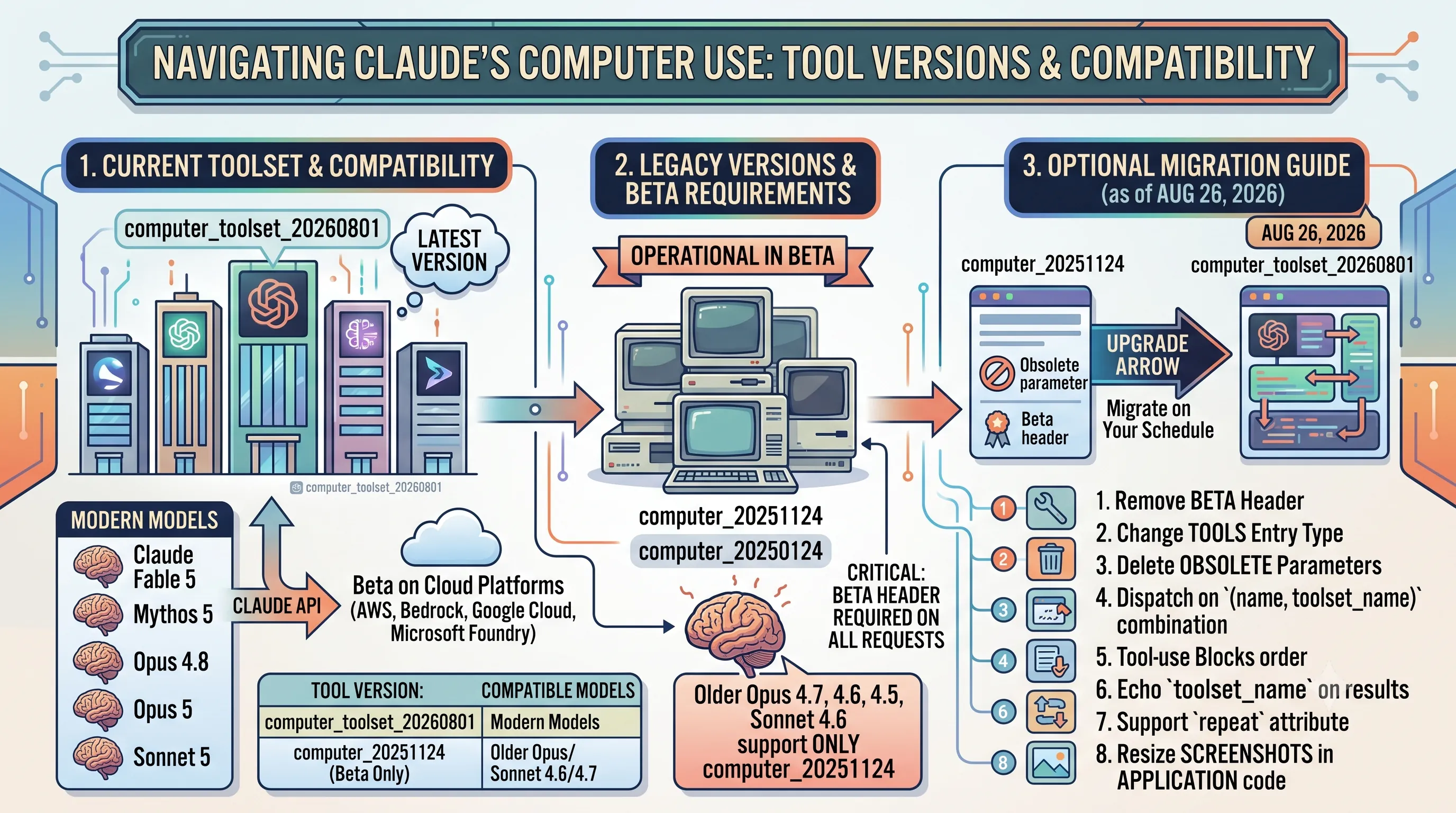
The latest and most capable version for interacting with on-screen elements is the `computer_toolset_20260801`.
This toolset is officially supported across a range of modern Claude models, including Claude Fable 5, Mythos 5, Opus 4.8, Opus 5, and Sonnet 5, specifically when accessed via the Claude API.
For those utilizing cloud platforms, support for this toolset is also available in beta on Claude Platform on AWS, Amazon Bedrock, Google Cloud, and Microsoft Foundry.
The table below outlines which models are compatible with the current toolset versus those that rely on the previous beta version.
| Tool Version | Compatible Claude Models |
|---|---|
computer_toolset_20260801 |
Claude Fable 5, Mythos 5, Opus 5, Opus 4.8, Sonnet 5 |
computer_20251124 (Beta Only) |
Claude Opus 4.7, Opus 4.6, Sonnet 4.6, Opus 4.5 |
Legacy Tool Versions and Beta Availability
For developers with existing integrations or those using older models, the previous tool versions remain operational.
Both `computer_20251124` and `computer_20250124` continue to be available in beta.
This ensures that current implementations do not break and provides a pathway for models that have not been updated to support the new toolset.
Specifically, Claude Opus 4.7, Claude Opus 4.6, Claude Sonnet 4.6, and Claude Opus 4.5 support computer use exclusively through the `computer_20251124` beta tool version.
A critical requirement for using these legacy versions is the inclusion of a beta header on every API request.
It is also important to note that cloud platforms other than the direct Claude API currently only offer these earlier beta tool versions.
Migration Guide for Existing Integrations
As of August 26, 2026, upgrading from `computer_20251124` to the new toolset is an optional process, allowing teams to migrate on their own schedule.
For those ready to upgrade to `computer_toolset_20260801`, the migration involves several specific technical changes.
The required steps are:
- Remove the beta header from API requests.
- Change the tools entry type in your code.
- Delete old, now-obsolete parameters.
- Update your logic to dispatch on a combination of `(name, toolset_name)`.
- Ensure that tool-use blocks are run in the correct order.
- Echo the `toolset_name` on results sent back to the model.
- Implement support for the `repeat` attribute on the `key` member for actions like repeated keystrokes.
- Handle the resizing of screenshots within your own application code, as this is no longer managed by the tool.
References
- https://docs.stagehand.dev/v4/first-steps/introduction
- https://platform.claude.com/docs/en/agents-and-tools/tool-use/computer-use-tool
- Computer Vision for UI Automation Differences
- Visual UI Automation Tools Differences | Inference Systems
- Top UI and Image Based Test Automation Tools in 2026 | T-Plan
- Visual AI Testing: Smart UI Comparison · Yuri Kan
- AskUI vs Ui.Vision RPA: Automation Tool Comparison
Related Posts