
Hire Your First AI Employee: The Definitive 2026 Guide to n8n & Zapier Central
Key Takeaways for Your AI Employee Journey
- AI employees are autonomous agents designed for complex, multi-step tasks, evolving beyond simple automation.
- Define clear job descriptions and measurable KPIs for your AI before building anything to ensure its effectiveness.
- n8n offers visual workflow building and self-hosting for granular control and data privacy, while Zapier Central provides conversational, agent-based creation for ease of use.
- Advanced configuration includes prompt engineering (like Chain-of-Thought) and robust conditional logic to guide AI decisions and actions.
- Monitoring and human oversight are crucial, incorporating logging, error detection, and human-in-the-loop approvals for critical tasks.
Welcome to the era where your most efficient, tireless, and data-driven team member isn't a person, it's an AI.
By 2026, automation platforms have advanced, transforming into powerful operating systems for creating 'AI Employees' or autonomous agents capable of handling complex, multi-step tasks.
This guide will walk you through the entire process, from conception to deployment and maintenance, using two leading platforms: n8n (version v2.48.1) and Zapier Central (projected v2.2).

1. Defining Your AI Employee's Job Description
Before you build any logic, you must first define your AI's role.
A poorly defined role almost always leads to an ineffective AI.
Treat this as a strategic hiring process, just as you would for a human team member.
Step 1: Identify High-Friction, Low-Creativity Tasks
Look for bottlenecks in your business that are repetitive, rule-based, and consume valuable human time.
- Good Candidates:
Sorting and summarizing inbound emails, qualifying new leads from a form, transcribing meeting notes and creating action items, enriching contact data, or monitoring brand mentions online. - Poor Candidates:
Closing a high-value sales deal, designing a new brand logo, or writing a heartfelt apology to a client.
Step 2: Set Clear, Measurable Objectives (KPIs)
How will you know if your AI employee is successful?
- Example for a Lead Qualification AI:
- Objective: Qualify all inbound web leads within 2 minutes of submission.
- KPI 1: Reduce lead response time from 4 hours to less than 2 minutes.
- KPI 2: Increase the percentage of MQLs (Marketing Qualified Leads) passed to sales by 15% by filtering out junk.
- KPI 3: Maintain a qualification accuracy of greater than 95% (as verified by human spot-checks).
Step 3: Draft the Job Description Template
AI Employee Job Title: Lead Qualification & Enrichment Specialist

Primary Objective: To autonomously process, enrich, and qualify all inbound leads from the company website, ensuring the sales team receives only high-potential, actionable contacts.

Core Responsibilities:
1.  Monitor: Instantly trigger upon a new submission from our HubSpot/Webflow form.
2.  Enrich: Use services like Clearbit or Hunter to find the lead's company size, role, and location.
3.  Analyze & Qualify: Using a custom GPT-4 model, analyze the enriched data and the lead's message against our Ideal Customer Profile (ICP).
4.  Route:
    - If qualified as 'Enterprise', create a deal in Salesforce and notify the #sales-enterprise Slack channel.
    - If qualified as 'SMB', add to a Mailchimp sequence and notify the #sales-smb channel.
    - If 'Unqualified/Spam', archive the contact in the CRM.
5.  Log: Record every action and decision in an Airtable log for review.

Required Skills & Access:
- API Access: HubSpot, Salesforce, Slack, OpenAI, Clearbit, Airtable.
- Logic: Conditional routing, data formatting, error handling.
2. N8n & Zapier Central: Account Setup & Initial Configuration

Zapier Central (The Conversational Agent Approach)
Zapier Central excels at building AI agents you instruct with natural language.
- UI Path for Setup:
- Navigate to central.zapier.com and sign in with your Zapier account.
- Click "Create Bot" in the main dashboard.
- Give your bot a name, such as "Sales Development Bot."
- Go to the "Data Sources" tab on the left.
Click "Add Data Source" to connect your tools like Google Drive, Notion, or a database.
This gives your bot knowledge. - Go to the "Tools" tab.
Click "Add Tool" and connect actions your bot can take, for example, Gmail, Slack, or Salesforce.
This is equivalent to connecting apps in a classic Zap. - Securely manage credentials under your main Zapier account settings at zapier.com/app/connections.
n8n (The Visual Workflow Approach)
n8n provides more granular control with its node-based, visual canvas.
You can self-host for full data privacy or use n8n Cloud.
- UI Path for Setup:
- Sign up at n8n.io or deploy your own instance.
- You'll land on the Workflows canvas.
Workflows are your AI employees. - Click on "Credentials" from the left-hand menu.
- Click "Add credential."
Search for the app you want to connect, such as "Google Sheets" or "OpenAI." - Follow the OAuth or API key instructions.
For API keys, n8n provides a secure vault.
Enter your key and save. - Your credentials are now available to use in any node within your workflows.
3. Your AI's First Task: Building a 'Hello World' Workflow

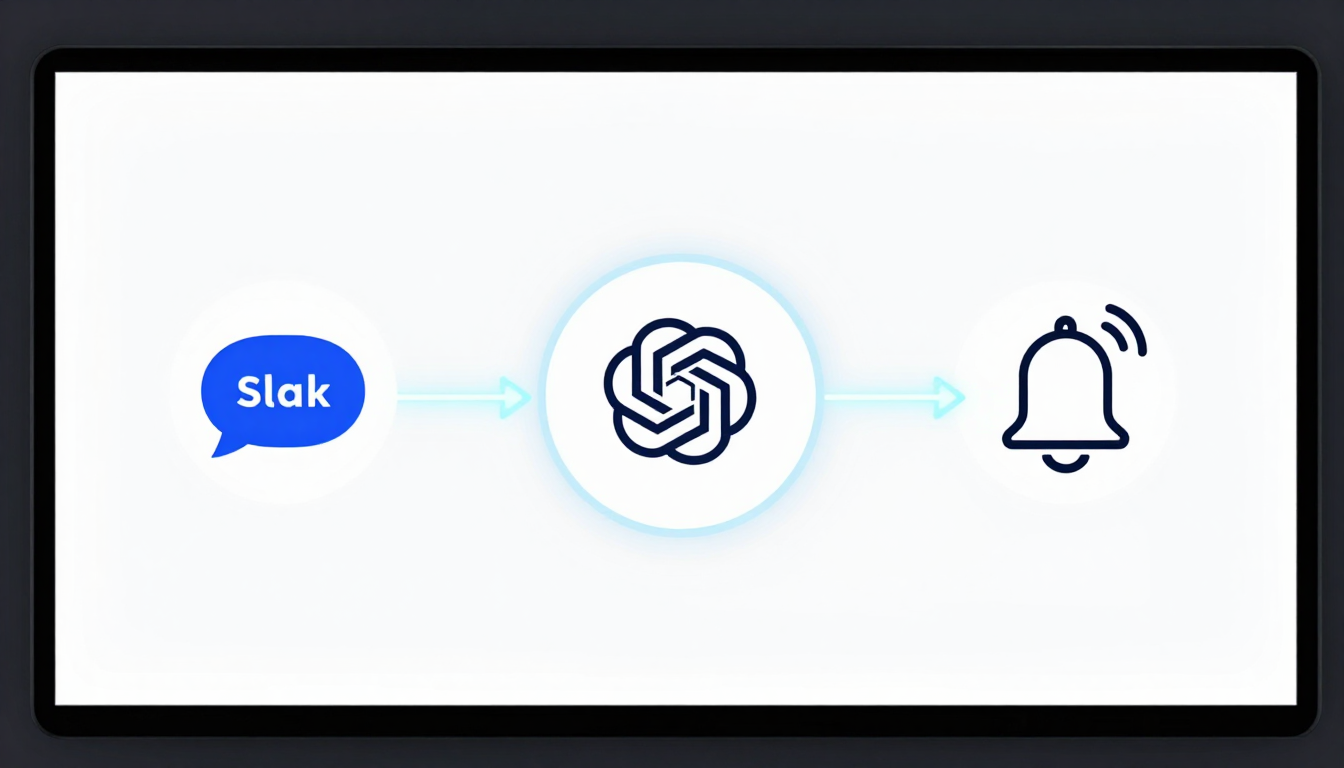
Let's build an AI that summarizes new Slack messages in a specific channel and DMs you the summary.
We'll use n8n for this example due to its visual clarity.
Objective: When a message is posted in #customer-feedback, an AI summarizes it and sends the summary to me via a Slack DM.
- Step-by-step UI Path (n8n):
- Create New Workflow: On your n8n canvas, click the `+` to add the first node.
- Add Trigger Node: Search for and select "Slack Trigger."
- Authentication: Select your Slack credential.
- Event: Choose "Message Posted."
- Channel: Select `#customer-feedback` from the list.
- Activate the trigger.
- Add AI Node: Click the `+` on the Slack node, search for and select "OpenAI Chat Model."
- Authentication: Select your OpenAI credential.
- Model: Choose `gpt-4o`.
- Text: In the prompt box, write:
You are an expert business analyst. Please provide a one-sentence summary of the following customer feedback. Focus on the core problem or praise. Ignore conversational filler.

Feedback: "{{ $json.text }}"
{{ $json.text }}is an n8n expression that dynamically inserts the message text from the trigger node.
- Add Action Node: Click the `+` on the OpenAI node, search for and select "Slack."
- Resource: Choose "Message."
- Operation: Choose "Send Direct Message."
- User: Select your own Slack username.
- Text: Drag the output from the OpenAI node.
The expression will look something like{{ $('OpenAI Chat Model').json.choices[0].message.content }}.
- Activate & Test: Save and activate the workflow.
Post a message in the `#customer-feedback` channel to test it.
- Create New Workflow: On your n8n canvas, click the `+` to add the first node.
4. Real-World Use Case: AI for Lead Qualification & Enrichment
This workflow automates the 'Job Description' we drafted in section 1.

Platform: Zapier Central
- Step-by-step Logic:
- Define the Trigger: In Zapier Central, your trigger is an instruction.
You'd tell the bot:"When a new form is submitted in HubSpot, execute the 'Lead Qualification' behavior." - Create a New Behavior: Inside your bot's configuration, click "Add Behavior."
- Step 1: Get Form Data (Trigger). Configure the HubSpot trigger for "New Form Submission."
- Step 2: Enrich Data (Tool). Add a tool step using Clearbit.
- Action: "Find Person & Company."
- Input: Map the email address from the HubSpot trigger:
{{ step1.email }}.
- Step 3: Qualify with AI (Built-in AI). Zapier Central's core is its AI instruction step.
- Instruction Prompt:
You are a B2B sales development expert. Your company's Ideal Customer Profile (ICP) is: companies in the tech or finance industry, with over 200 employees, located in North America.

Analyze the following lead data:
- Form Message: {{ step1.message }}
- Company Name: {{ step2.company.name }}
- Company Size: {{ step2.company.employees }}
- Company Industry: {{ step2.company.category.industry }}
- Location: {{ step2.company.geo.country }}

Based *only* on the data provided, classify this lead into one of three categories: 'Enterprise', 'SMB', or 'Unqualified'. Provide ONLY the category name as your output.
- Instruction Prompt:
- Step 4: Conditional Paths (Built-in Logic). Zapier Central uses AI-driven logic.
- Add a logic step:
"If the output of Step 3 is 'Enterprise'..."
- Action: Use the Salesforce tool to "Create Deal."
- Action: Use the Slack tool to "Send Channel Message" to `#sales-enterprise`.
- Add another logic step:
"If the output of Step 3 is 'SMB'..."
- Action: Use the Mailchimp tool to "Add Subscriber to Audience."
- Action: Use the Slack tool to "Send Channel Message" to `#sales-smb`.
- Add a logic step:
- Activate Behavior. Your AI employee is now on duty.
- Define the Trigger: In Zapier Central, your trigger is an instruction.
5. Advanced AI Employee Configuration: Custom Prompts & Logic
To elevate your AI from a simple tool to a sophisticated agent, you need advanced techniques.
Advanced Prompt Engineering (Chain-of-Thought & XML Tags)
Instead of simple instructions, guide the AI's thinking process.
This improves accuracy for complex tasks.
- Example: Sentiment Analysis & Categorization
You are a customer support ticket analyzer. Your task is to process an incoming support ticket, determine its sentiment, categorize it, and extract key entities. Follow these steps precisely.

<thinking_steps>
1.  Read the user's message inside the <ticket_text> tags.
2.  First, determine the sentiment. Is it Positive, Neutral, or Negative?
3.  Second, categorize the ticket into one of the following: 'Billing Issue', 'Technical Glitch', 'Feature Request', or 'General Inquiry'.
4.  Third, extract the user's name and any mentioned product names or invoice numbers.
5.  Finally, format your entire output as a JSON object with the keys "sentiment", "category", "userName", and "entities".
</thinking_steps>

<ticket_text>
{{ $json.body.ticket_message }}
</ticket_text>
Conditional Logic (n8n's IF & Switch Nodes)
n8n's logic nodes allow for powerful, deterministic routing that AI can't always guarantee.
- IF Node: A simple true/false branch.
Example:IF {{ $('OpenAI Chat Model').json.choices[0].message.content }}contains the word "Urgent", then send a PagerDuty alert. - Switch Node: Routes data down different paths based on the value of a single input.
This is perfect for handling the output of our AI classification model.
- UI Path (n8n):
- Add a Switch node after your AI node.
- Mode: Set to
String. - Property: Set the value to the AI's output, e.g.,
{{ $('OpenAI Chat Model').json.output.category }}. - Routing Rules:
- Rule 1: Value Equals
Enterprise-> Output 0 - Rule 2: Value Equals
SMB-> Output 1 - Rule 3: Value Equals
Unqualified-> Output 2
- Rule 1: Value Equals
- Connect different action nodes (Salesforce, Mailchimp, etc.) to each of the Switch node's output anchors (0, 1, 2).
- UI Path (n8n):
6. Monitoring Your AI Employee: Performance & Oversight
An autonomous agent requires trust, but also verification.
- Logging & Auditing:
- Strategy:
Create a dedicated logging destination like an Airtable base, Google Sheet, or a database, such as Postgres. - Implementation:
As the final step in every workflow, add a node that logs the trigger data, the AI's decision, and the final action taken.
Include a timestamp and a link to the workflow execution log.
- Strategy:
- Error & Anomaly Detection:
- Strategy:
Your workflow should know how to fail gracefully. - Implementation (n8n):
Use the "Error Trigger" node.
This is a special workflow that runs only when another workflow fails.
It can capture the error details and send a notification to `#ops-alerts` in Slack with the error message and a link to the failed execution.
- Strategy:
- Human-in-the-Loop (HITL):
- Strategy:
For critical or ambiguous decisions, pause the automation and ask for human approval. - Implementation (Zapier):
Use the "Approval" step.
The workflow halts until a user clicks "Approve" or "Deny" in an email or Slack message. - Implementation (n8n):
Use a "Wait" node and a webhook.
The workflow can send a message with two links (approve/deny).
When a link is clicked, it calls a webhook that resumes the main workflow with the human's decision.
- Strategy:
7. Troubleshooting Common AI Workflow Errors
Error: API 429 - Too Many Requests
- Symptom:
Your workflow fails intermittently, especially during high volume, with a429orRate Limit Exceedederror. - Cause:
You are calling an API (like OpenAI or a CRM) more times per minute than your plan allows. - Solution (n8n):
Use the Split in Batches node before the API call.
Set it to process, for example, 50 items, then use a Wait node for 60 seconds before processing the next batch.
This smooths out your API calls.
Error: Data Mismatch / Unexpected AI Output
- Symptom:
The AI's output isn't in the format you need (e.g., it gives a full sentence instead of"Enterprise"), causing downstream nodes to fail. - Cause:
The prompt is not constrained enough.
Large Language Models can be unpredictable. - Solution:
- Strengthen the Prompt: Add explicit formatting instructions like
"Provide ONLY the category name as your output. Do not add any other text or punctuation." - Add a Parsing Step: Add a "Code" node (n8n) or "Formatter" step (Zapier) after the AI call to clean the data.
You can use regex or simple string manipulation to extract the exact word you need. - Use Function Calling/Tools: In newer AI models, define a function or 'tool' the model can call with structured data (e.g.,
classify_lead(category)).
This forces the output into a reliable, machine-readable format.
- Strengthen the Prompt: Add explicit formatting instructions like
Error: Authentication Failure
- Symptom:
A node fails immediately with a401 Unauthorizedor403 Forbiddenerror. - Cause:
The API key or OAuth token has expired, been revoked, or is incorrect. - Solution:
- Go to the "Credentials" section in n8n or the "Connections" page in Zapier.
- Find the relevant connection and choose to "Reconnect" or "Edit."
- Re-authenticate via the service's login flow or paste in a new, valid API key.
8. n8n vs. Zapier Central: Choosing Your AI's Home Base
Deciding between n8n and Zapier Central depends on your specific needs, technical comfort, and data requirements.
Here's a breakdown to help you choose:
|
Feature |
Zapier Central |
n8n (Node-Based Automation) |
Best For... |
|---|---|---|---|
| Core Philosophy | Conversational, agent-based. Instruct with language. |
Visual, node-based. Connect blocks to build logic. |
Zapier: Teams wanting to build agents quickly via prompts. n8n: Developers needing granular control and complex logic. |
| Hosting & Data | Cloud-only. Data processed on Zapier's servers. |
Cloud and Self-Host (Docker, Kubernetes). Full data sovereignty. |
n8n for industries with strict data privacy (healthcare, finance). |
| Logic & Branching | Handled by AI instructions and simple pathing. | Advanced deterministic logic: IF, Switch, Merge, Loops. | n8n for complex, multi-path business processes. |
| Custom Code | Limited to built-in AI and tool configurations. | Code Node: Run custom JavaScript/Python. Build own nodes. |
n8n for extensibility and custom data transformation. |
| Pricing Model | Per-run/task-based, with tiers for features. See Zapier Pricing. |
Tiered by workflow executions. Self-hosting can be cheaper. See n8n Pricing. |
Zapier for predictable, low-volume tasks. n8n for high-volume or self-hosted cost savings. |
| Ease of Use | Extremely high for non-technical users. | Moderate learning curve, but highly powerful. | Zapier for rapid prototyping and business users. |
| Error Handling | Basic retry logic, email notifications. | Advanced error workflows, custom retry logic, dead-letter queues. | n8n for building resilient, mission-critical systems. |
Final Verdict:
- Choose Zapier Central if your team wants to leverage AI conversationally, build agents quickly without deep technical knowledge, and operate in a fully-managed cloud environment.
You can learn more at Zapier Central and through their documentation. - Choose n8n if you need full control, complex conditional logic, the ability to run custom code, and the option to self-host for data privacy and cost management.
It's often the preference for power users and developers, with extensive documentation and a GitHub repository for self-hosting.
Related Posts